
Samsung Smart TV setup
IPTV Samsung TV UK: 7 Easy Setup Steps and Fixes
This IPTV Samsung TV guide starts with a question many quick tutorials skip: can your exact television install the player you need? Check the model, choose an app from the TV’s own store, add your authorised service details and test the picture before paying for a longer plan.
The short answer
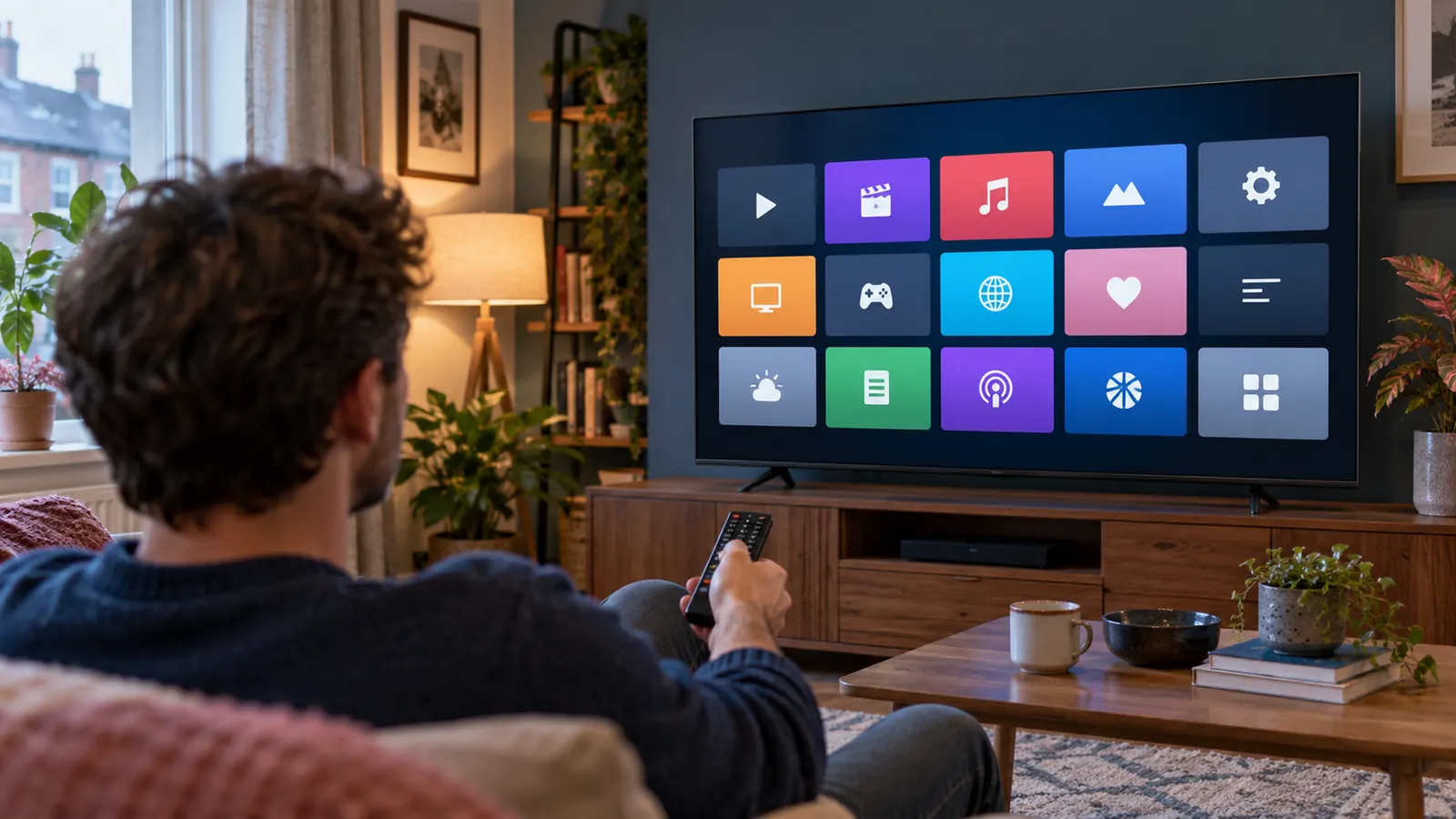
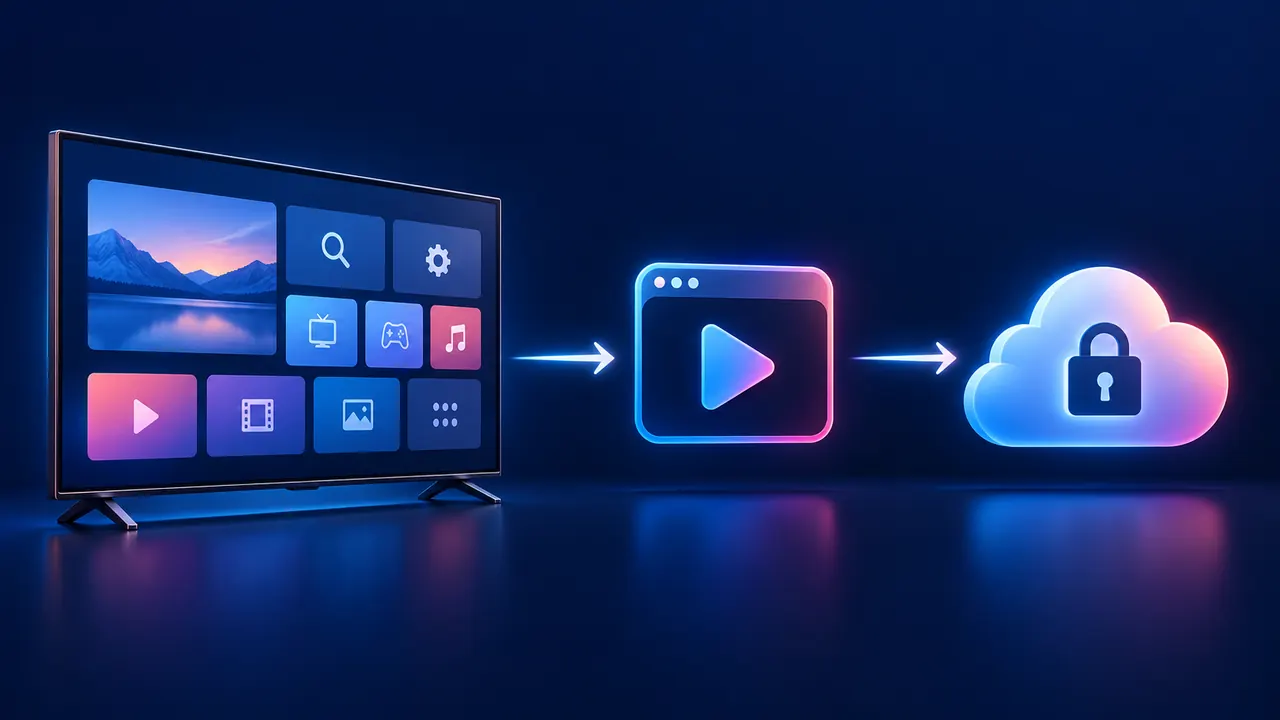
Most recent Samsung Smart TVs can play an authorised IPTV source through a compatible app installed from Apps in Smart Hub. The television app is only the player; it does not automatically include channels or a subscription. Availability varies with the TV model, software and region. If your preferred player is missing, confirm the model before choosing a different app or an external streaming device.
Check before you subscribe
IPTV Samsung TV compatibility: what matters?
Samsung Smart TVs normally use Samsung’s own TV software and app catalogue, rather than the Android TV Play Store. That is why a phone tutorial telling you to install an APK or TiviMate is not a reliable Samsung TV instruction. Begin with what the television actually offers. Samsung says the app steps can differ between models and that a Samsung account is needed to download apps; its UK guide to managing TV apps is the safest reference when your menu looks different.
Find your exact model code
Open Settings → Support → About This TV and note the model code and software version. Samsung’s model-number instructions also show where to find the label on the rear of the set. You can tell support the model code without sharing the serial number. A year or a label such as “QLED” alone is not enough to guarantee a particular app appears in your UK store.
Check Apps, account and software
Press Home → Apps → Search and look for the player by its exact name. Read the publisher name and supported features before installing. If Apps asks for a Samsung account, sign in through the TV’s normal flow. Then check Settings → Support → Software Update; the wording can vary by model. Do not change the TV’s country setting just to make an app appear, because that may affect other services without solving compatibility.
Player and service are different
Which IPTV app should you use on a Samsung TV?
The best player is the one available for your television, maintained by a recognisable publisher and compatible with the login format supplied for your authorised service. App availability, features and licence fees change, so avoid choosing from a fixed “top ten” list before checking the UK Samsung Apps screen. Some apps are free to install but charge separately for activation; that fee is not the same as a content subscription.
| Login method | What you receive | What to check |
|---|---|---|
| M3U playlist URL | A link entered in the app or its companion website | Confirm the app accepts M3U and whether the EPG needs a separate URL. |
| Username, password and server URL | Three account fields, often called an Xtream-compatible login | Use the fields exactly as supplied; this method does not itself improve stream quality. |
| Device or app code | A pairing code displayed by the player | Open only the app publisher’s official pairing page and check whether activation has a fee. |
Never post a playlist URL or account password in a public forum. If an app asks for a MAC address or pairing code, confirm that you are on its genuine publisher site before entering it. For a family television, also check how the app handles favourites, programme guide data and any parental controls you need.
A clean first setup
How to set up IPTV on a Samsung Smart TV in seven steps
- Note the TV model. Open About This TV, record the model code and software version, and check that the television is set up for your actual country.
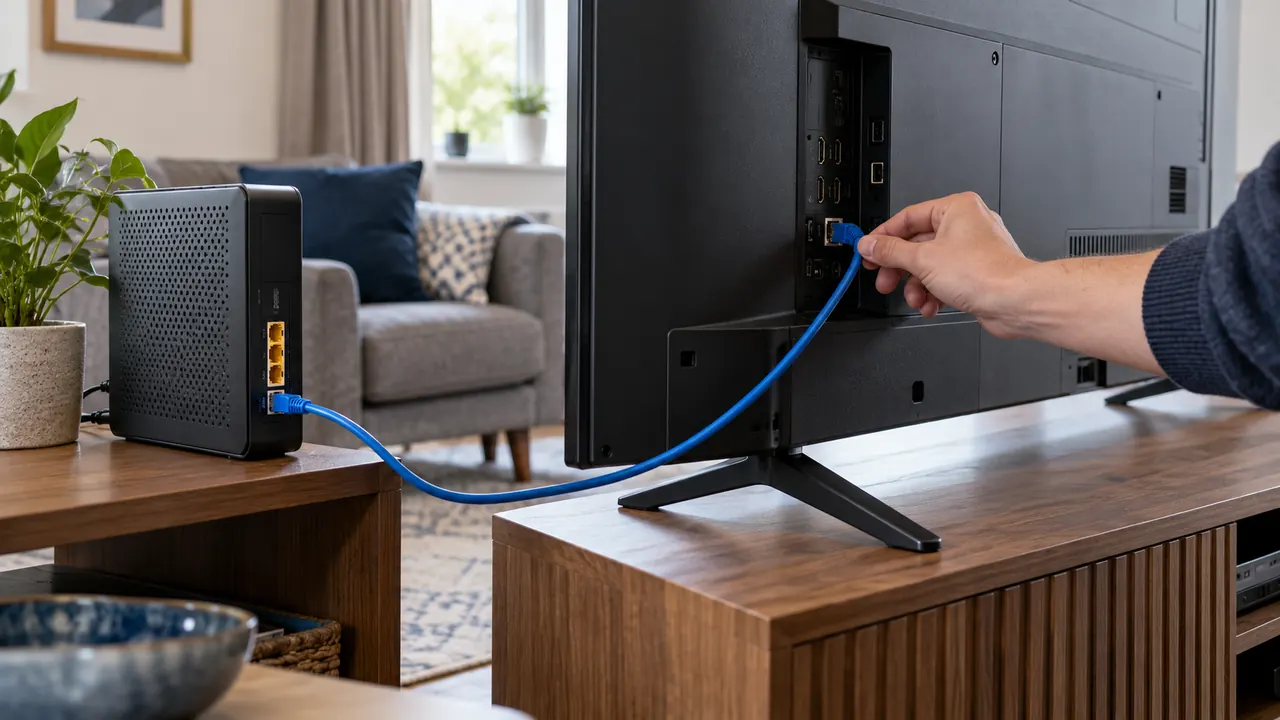
- Connect the TV to the internet. Use your normal home Wi-Fi or Ethernet. Before changing IPTV settings, confirm a familiar app or the TV’s network test can reach the internet.
- Update the television. In Settings, look for Support and Software Update. Samsung’s UK update instructions explain both network and USB methods.
- Open Home → Apps → Search. Search for a player that supports the login format you have. Check its publisher and any app fee before choosing Install.
- Open the player and add your details. Enter the supplied M3U link, account fields or pairing code using the method the app supports. A phone can make long URLs easier to type if the app offers an official pairing page.
- Allow the playlist and guide to load. The first import may take longer than opening the app. A blank EPG does not necessarily mean live playback has failed; check whether the service supplied separate guide data.
- Test before committing. Try a few authorised live channels, an on-demand item if included, and the same channel at a second time. Check sound, picture and remote navigation on the device you will actually use.
If the app is not in Smart Hub, stop at step four and ask which supported route fits your model. An external HDMI streaming device can run its own app store without changing the television software. Our Firestick setup guide explains that route separately.
A useful ten-minute check
What should you test before paying?
A loading screen is not a successful setup. Start with a channel you know is included, change to another channel, then try a film or series if your selected service offers one. Open the programme guide and make sure its times align with the UK time shown by your TV. Check the remote’s Back button and favourites, because a player that is awkward to navigate every evening is a poor fit even if it plays video.
To isolate problems, test one device at a time. Note the app name, TV model, connection type and exactly which item failed. If you switch between Wi-Fi and Ethernet, change only one thing before repeating the same test. This makes a support conversation far quicker than a screenshot saying only “not working”. BritStream’s process lets you request a selected plan and test it before payment; read the four IPTV subscription options after you know the TV works.
Find the failing link
Samsung TV IPTV troubleshooting without guesswork
Start by asking whether the television itself is online, whether the player opens, and whether one or every channel fails. These are different problems. Samsung’s app troubleshooting page recommends a full restart, software update and reinstall before resetting Smart Hub.
| What you see | Check first | Then try |
|---|---|---|
| App absent from search | Confirm you searched Apps, not the TV web browser; check model and UK region. | Ask for a compatible alternative or use a supported external device. |
| Login fails | Compare all account fields, punctuation and expiry details against what was supplied. | Ask support to verify the account; do not publish the credentials in a forum. |
| Channels play but EPG is blank | Wait for first import and check the TV clock and time zone. | Ask whether the player needs a separate guide URL or a refresh. |
| Only one channel buffers | Try two other channels at the same time. | Report the channel and time to support; the whole TV may be fine. |
| Every app buffers | Check the TV’s network status and whether other devices also slow down. | Compare Ethernet or a stronger Wi-Fi signal; restart router and TV if needed. |
| Black picture or no sound | Try another stream, check TV sound output and connected soundbar. | Check app updates and ask support whether that stream’s format is supported. |
| Player crashes on launch | Fully restart the TV, then check TV and app updates. | Reinstall the app after saving your login details. Reset Smart Hub only as a last resort. |
Do not reset Smart Hub casually. Samsung warns that a reset signs you out of every app. Save the login details for the services you use before attempting that final step. A full factory reset goes further and is not a sensible first response to one IPTV player misbehaving.
Use the right screen
Built-in Samsung app or external streaming device?
Use the TV’s built-in player when the app you need appears in Smart Hub, accepts your authorised account and responds well to the Samsung remote. It keeps the setup simple and avoids another remote or power cable. An external device makes sense when the TV app catalogue lacks a suitable player, the television is old and slow, or you need a feature the built-in player does not offer. The external device connects by HDMI and uses its own software; it does not turn the Samsung TV into an Android TV.
There is also a source of confusion worth clearing up: Samsung TV Plus is Samsung’s free, ad-supported viewing service. It is separate from a third-party IPTV player and from any paid subscription you choose. Seeing TV Plus on the home screen does not prove that another IPTV app is installed or supported.
When your setup is ready
Choose the plan after the TV test
One television is the easiest place to start. Compare the four BritStream durations, tell us your Samsung model and preferred player, and arrange the test described on the plan page. If something is unclear, contact support with the model code and the symptom before paying.
Compare IPTV subscriptionsCommon questions
IPTV Samsung TV FAQs
Can I install any IPTV app on a Samsung Smart TV?
No. Install only a player that appears for your model and region in Samsung Apps and supports your login method. A phone or Android TV app may not have a Samsung TV version.
Is Samsung TV Plus the same as an IPTV subscription?
No. Samsung TV Plus is Samsung’s free ad-supported service. An IPTV player and a separate authorised subscription use different apps and account details.
Why is my IPTV app missing from Samsung Apps in the UK?
App listings can differ by model, software and region. Confirm the TV model, update its software, then ask the app publisher or your service provider about an available alternative. Do not assume an APK made for Android will install on the TV.
Should I use Wi-Fi or Ethernet for IPTV on my Samsung TV?
Either can work. Start with the connection you already use; if several streams buffer, compare a wired Ethernet connection where possible. If only one channel fails while other apps work, the network may not be the cause.
Editorial note: Device menus and app availability can change. The setup and troubleshooting checks above were cross-checked against Samsung UK support pages on 24 October 2026; we have not claimed hands-on testing of every Samsung model or player.