
Diagnose first. Change one thing at a time.
IPTV Buffering Fixes UK: Diagnose Freezing in 10 Minutes (2026)
If you searched for IPTV buffering fixes UK, begin with the pattern rather than a random setting: check whether one channel, every channel, one device or the whole home is affected. Then restart only the failing part, compare Ethernet with Wi-Fi, clear app cache if needed and record what changes. A speed test alone cannot prove that a stream is stable.

IPTV buffering fixes UK: make a 60-second diagnosis
Buffering is a symptom, not a diagnosis. The useful question is not simply “Is IPTV down?” It is “What else fails at the same time?” One short comparison can prevent an evening of uninstalling apps, changing DNS addresses and restarting a router that was never the cause.
Keep the first test small. Stay on the same device and open a different channel in the same authorised playlist. Then try one on-demand item if your service includes it. Finally, open a legitimate mainstream streaming service or a normal web video on that device. You are looking for a pattern, not trying to prove who is at fault.
| What you see | Test now | What it usually points towards | Next step |
|---|---|---|---|
| One channel buffers | Open two other channels at a similar quality. | A channel feed, route or temporary source issue is more likely than the whole home network. | Record the channel and time; report it without resetting the app. |
| All channels buffer, but on-demand works | Compare another live event and check whether the issue is time-specific. | Live delivery, account limits or peak demand may be involved. | Check simultaneous connections, then send examples to support. |
| Every stream fails on one device | Use another legitimate video app on that same device. | The app, device storage, decoder or its Wi-Fi position may be the weak point. | Restart the device, check storage and test its connection. |
| Several devices struggle together | Pause large downloads and compare Ethernet with Wi-Fi. | The router, local congestion or broadband path deserves attention. | Restart the router once and check the provider status. |
| Freezing appears mainly in the evening | Repeat the same test outside the affected period. | Peak-time congestion may exist at home, on the broadband route or upstream. | Save two time-stamped comparisons for support. |
| One app fails but another plays the same authorised source | Refresh the playlist and check the failing app for an update. | App configuration, cache or media-decoder compatibility is more likely. | Clear cache, not data, before rebuilding the app. |
The table uses “points towards” deliberately. More than one fault can produce the same symptom. A weak Wi-Fi link may expose a stream that has little tolerance for delay, while a well-buffered on-demand service appears normal. Treat each result as evidence for the next test, not a final verdict.
A fast speed test can still hide an unstable stream
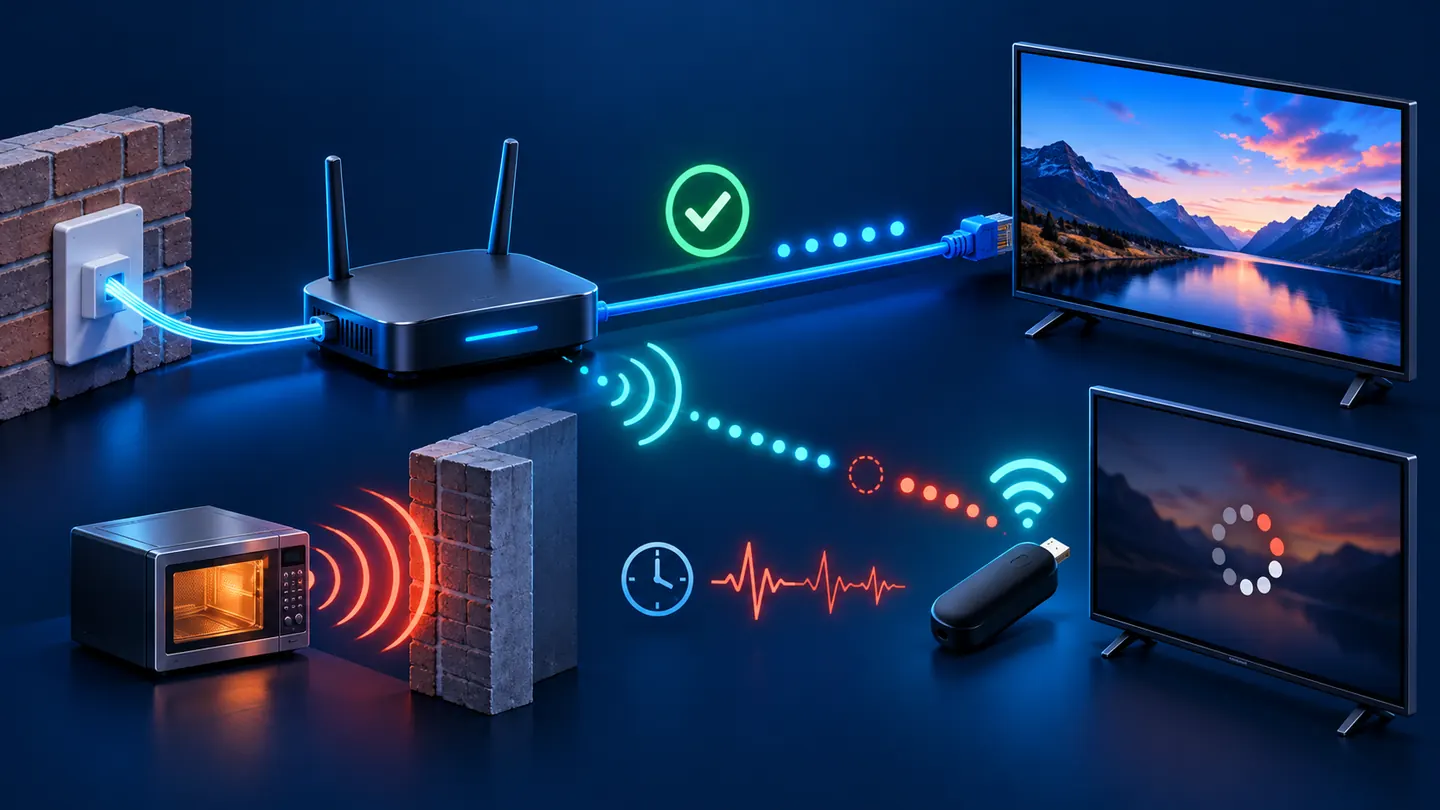
Download speed is the amount of data a connection can deliver over a period. Streaming also depends on how consistently the data arrives. A speed test is a short sample, often to a nearby test server. Your television stream may take a different route, run for much longer and respond differently to brief interruptions.
Latency is the travel time for data. Jitter is variation in that travel time. Packet loss means some data did not arrive correctly. You do not need to memorise thresholds to troubleshoot them. The practical sign is a connection that looks fast in a headline result but stalls, drops quality or recovers repeatedly during continuous playback.
Stability is why an Ethernet connection with an ordinary speed can outperform faster Wi-Fi in a busy room. It is also why standing beside the router for one phone test does not describe the signal behind a wall-mounted television. Test where the viewing device actually sits.
IPTV delivers television over the internet. The player, source, broadband route and home network can each affect playback. Keeping those parts separate makes the fault easier to locate.
Try fixes in this order: safe and cheap first
The order matters. Start with reversible changes that preserve your login and favourites. A factory reset, app-data wipe or new router creates work and can remove useful evidence. Make one change, replay the same example and write down the result.
1. Check whether the programme itself is the exception
Change from the affected channel to two unrelated channels. If the service includes on-demand viewing, open one recent title. A single broken channel should be reported as a single broken channel. Restarting every device in the home cannot repair a missing upstream feed.
For live sport, compare a non-event channel as well. A popular event may take a different route or experience demand that normal programming does not. Include the event name and approximate time in your support message.
2. Stop and reopen the stream
Return to the guide or home screen, wait a few seconds and reopen the item. If the player offers an alternative player or decoder that your provider supports, note the original setting before trying it. Do not change several playback options together; you will not know which change mattered.
If the picture resumes but audio or subtitles fail, treat that as a format or player clue rather than a broadband diagnosis. Record whether the same item behaves differently on another compatible device.
3. Fully close the app
Leaving an app and returning to the television home screen does not always stop it. On Fire TV, use Settings > Applications > Manage Installed Applications > [your player] > Force stop, then reopen it. Menu wording can vary slightly with software updates, but the installed-applications screen is the place to look.
On televisions where there is no clear force-stop control, power cycling the television is a cleaner test: switch it off, unplug it from power, wait briefly and reconnect it. Do not repeatedly pull the plug while an update is running.
4. Restart the streaming device
On Fire TV, the normal route is Settings > My Fire TV > Restart. This is safer than immediately choosing “Reset to Factory Defaults”, which removes accounts and apps. A restart clears a stuck process without erasing your setup.
For a television app, use a full power cycle rather than a quick standby toggle. For Apple TV, use Settings > System > Restart. If that is your main device, the separate IPTV on Apple TV UK setup guide explains the surrounding player choices.
5. Check available storage and pending updates
A nearly full device may struggle to update apps or maintain temporary files. Remove unused apps or downloads through the device’s normal storage screen. Avoid third-party “cleaner” utilities that ask for broad permissions or promise automatic acceleration.
Update the television or streaming device through its official settings, and update the player through its recognised app store or the developer’s official route. If buffering started immediately after an update, note the old and new version if available; that is useful evidence for the developer.
6. Clear app cache before app data
On Fire TV, open Settings > Applications > Manage Installed Applications > [your player] > Clear cache. Cache is temporary material. Clearing it should not normally remove the account, although the app may need to rebuild guide data.
Clear data is different. It can sign you out and remove playlists, favourites and settings. Save authorised login details and any supported backup before using it. Do not press Clear data simply because it sits next to Clear cache.
7. Refresh, but do not repeatedly rebuild, the player
In TiviMate, IPTV Smarters and similar players, the exact menu names change by version. Use the app’s normal playlist or content refresh control first. Check that the device time and time zone are correct if the guide appears shifted. Avoid deleting the playlist unless you have the original authorised details and know a refresh has failed.
TiviMate and Smarters are players, not evidence that the source is healthy. If the same authorised login fails in two compatible players, report that comparison. If it fails only in one, include that app’s name and version when contacting its developer or your provider.
8. Compare the network without redesigning it
If an Ethernet cable can reach the device temporarily, use it for one comparison. You do not need to rewire the room to learn from the result. If Ethernet plays normally while Wi-Fi freezes, focus on signal, interference or the television’s Wi-Fi position. If both behave the same way, continue beyond the local wireless link.
9. Restart the router once
Use the router’s restart control if it has one, or switch it off and back on according to the broadband provider’s instructions. Allow it to reconnect fully before testing. Repeated power cycling can slow diagnosis and may interrupt line monitoring, so one controlled restart is enough.
Before restarting, check whether another person is in a call, uploading work or using a connected alarm or care device. A home network is shared infrastructure; fixing television playback should not unexpectedly disconnect something important.
Device-specific checks without wiping the setup
The same stream can behave differently across a Fire TV stick, a smart-TV app and a phone. That does not automatically make one device “bad”. Memory pressure, storage, Wi-Fi antenna position, operating-system updates and media-format support all change the result.
Fire TV and Firestick
- Restart: Settings > My Fire TV > Restart.
- Force stop: Settings > Applications > Manage Installed Applications > the player > Force stop.
- Clear temporary files: use Clear cache on the same app screen.
- Protect the setup: do not use Clear data or a factory reset until login details and app settings are safely recorded.
- Check heat and placement: give the stick and power adaptor ventilation; do not power it from an under-specified television USB port if the manufacturer supplies a mains adaptor.
For installation and model context, follow the dedicated IPTV on Firestick UK guide. If choosing a player is the problem rather than buffering, compare the best IPTV apps for Firestick UK separately so the two decisions do not become mixed.
Samsung smart televisions
Start with a full power cycle. On many recent Samsung models, holding the remote’s power button until the television restarts performs a cold boot; unplugging safely for a short period is another route. Menu names for storage and app care vary by model and software region, so use the television’s built-in help rather than copying a menu path from a different year.
Update the player from Samsung’s official app environment and confirm the television’s date, time and network status. If only the television app fails, compare the same authorised source on another supported device. Our Samsung Smart TV IPTV setup article covers the ordinary installation flow without treating an Android APK as a television app.
LG webOS televisions
Use a full power cycle, then check for webOS and app updates through the television’s official settings and LG app store. App availability and menu wording can vary by model, webOS version and region. Do not change the television’s service country merely to force an unavailable listing; that can affect other services and agreements.
If the app opens but the stream stalls, compare Ethernet if the television has a port. A television close to the router can still sit in an awkward radio position behind a screen or cabinet. If a separate streaming device works on the same cable, record the contrast before changing the account.
TiviMate, IPTV Smarters and similar players
Use neutral tests that survive app updates: refresh the authorised playlist, refresh guide data, confirm the device clock, note the app version and compare one known stream in another supported player. A larger buffer setting may delay the start and hide a short interruption, but it cannot repair a dead source or a connection that repeatedly drops. Keep the original value so you can reverse the change.
Do not install modified “premium” packages to solve freezing. They can contain altered code, expose credentials and break update paths. Use the recognised store or developer source, and never paste a playlist URL containing login details into a public checker.
Ethernet, 5 GHz Wi-Fi and router checks that tell you something
Ethernet is useful because it removes radio interference from the test. It is not a promise that every stream will work. If a temporary cable makes no difference, that evidence helps you stop blaming Wi-Fi. If it fixes the problem, improve the wireless path or use a permanent wired link where practical.
When 5 GHz helps
The 5 GHz Wi-Fi band often provides more capacity and encounters less interference from older household devices, but it usually travels through walls less effectively than 2.4 GHz. Use 5 GHz when the television has a strong, stable signal. A distant device behind several walls may be steadier on 2.4 GHz even if the headline speed is lower.
If your router combines both bands under one name, let it choose first. For diagnosis, you can compare bands only if the router and device expose a safe way to do so. Avoid changing channel widths, security modes and band names together. One change at a time keeps the result useful.
Check the room, not just the broadband package
A router on the floor, inside a cupboard or behind a television may deliver an uneven signal. Move it into the open if cables and household safety allow. Keep it away from dense obstacles and sources of electrical interference. Mesh systems can help larger homes, but a badly placed mesh node can repeat a weak connection rather than fix it.
Pause large game downloads, cloud backups and software updates during the test. If playback immediately stabilises, the remedy may be scheduling heavy transfers or using router traffic controls—not buying more apps. Remember that uploads can also affect an interactive home connection.
Use broadband evidence, not guesswork
Run several tests at the affected device or as close to it as the platform allows. Compare the troublesome period with a quieter time and note whether Ethernet changes the outcome. For current consumer information and ways to check service availability, use Ofcom’s broadband coverage and speeds advice. Your broadband provider can also see line or area faults that an IPTV player cannot diagnose.
DNS is not a universal buffering fix
DNS translates a service name into a network address. Once a stream is connected, changing DNS does not automatically create more bandwidth or improve a congested video route. It may help only when name lookup or an incorrect DNS response is genuinely the problem. If the app already connects and buffers mid-programme, collect more evidence before changing it.
Using an unknown “fast IPTV DNS” service gives another operator visibility into requests and can create new reliability or privacy concerns. Keep a record of the original automatic settings so any test is reversible.
A VPN is not a universal buffering fix either
A VPN adds another route and encryption step. That route may avoid a specific network problem, or it may add distance and reduce performance. It is not proof that a service is legal, private or secure, and it does not grant rights to watch restricted content.
If you already use a reputable VPN for a legitimate reason, compare the same authorised stream with it on and off where local rules and the service terms permit. Keep the device, channel and time the same. Do not buy a long subscription because a forum calls every playback problem “ISP throttling”.
Why live television and on-demand can behave differently
On-demand video can often prepare more data ahead of the playhead. Live television has less time to recover from a late segment because the programme is happening now. A short connection disturbance that passes unnoticed in a film may appear as a freeze during a live match.
Live buffers; on-demand works
Check another live channel, account connection limits and whether the issue follows a particular event or time. Send support a timestamp and channel name. Do not wipe the app when the library is clearly playing.
On-demand buffers; live works
Try another title and quality. A specific file, storage route or catalogue server may be involved. Report the title, episode and approximate playback position.
Both buffer in one app
Refresh the authorised account, restart the app and compare another legitimate player if supported. Check the app version, cache and device storage.
Both buffer in every app
Focus on the device and network. Compare Ethernet, restart the device and router once, and check the broadband provider’s status information.
A player’s buffer-size control changes how much content it tries to hold before or during playback. More is not always better. It can increase start time and memory use, and it cannot manufacture missing segments. Change it only after recording the default, then test one known item.
What to do when freezing happens only in the evening
Evening problems are frustrating because everything may look normal during a daytime support test. Compare like with like: the same device, connection, channel type and approximate quality. Note results at an affected time and at a quiet time. Two short observations are more useful than a long message saying it is “always slow”.
At home, check for scheduled backups, console downloads, security-camera uploads or several simultaneous streams. On the broadband side, check the provider’s status page and speak to them if ordinary services also degrade. If mainstream streaming is normal but the authorised IPTV source repeatedly fails at the same time, send the provider the channel and timestamps so it can inspect the relevant path.
Do not assume intent from one symptom. Congestion can occur on Wi-Fi, the local access network, an internet route or the upstream platform. A controlled comparison identifies where to ask the next question.
Send support a useful checklist, not your password
A good support message is short enough to read and specific enough to reproduce. Do not send a password, full playlist address or a screenshot that exposes credentials. Support normally needs the pattern and device context first.
Copy this structure
- Account reference: an order or customer reference, never the password.
- Device: exact Fire TV, Samsung, LG or Apple TV model where known.
- Player and version: for example TiviMate or IPTV Smarters, with the version shown in the app.
- Connection: Ethernet, 5 GHz Wi-Fi or 2.4 GHz Wi-Fi.
- Example: channel or title, date, local time and what the screen did.
- Scope: one channel, all live channels, on-demand, one device or several devices.
- Comparisons: whether another authorised app, device or connection worked.
- Changes tried: restart, cache clear, Ethernet test and their results.
For example: “At 20:35 UK time, Channel A froze every minute on a Fire TV Stick over 5 GHz. Two other live channels were normal; the same channel failed on a second device. Restarting the first device made no difference.” That points support towards the source far faster than “It keeps buffering”.
If you are comparing a replacement plan, check the stated connection allowance and device support on the BritStream IPTV subscription page before ordering. A multi-device household should not assume that one login permits every screen to play simultaneously.
Keep troubleshooting legal and safe
Use only streams and subscriptions you are authorised to access. A player is a tool; installing it does not provide rights to television, sport or films. Avoid sellers that hide the service identity, request unusual payment methods or promise every premium channel with no clear terms.
Download apps through recognised stores or the developer’s official website. Modified apps and copied websites can expose account details or install unwanted software. Protect playlist URLs because they may contain a username and password in the address itself.
Do not disable router security, expose management ports to the internet or install remote-control software for an unknown support account. A legitimate playback problem rarely requires a stranger to take unrestricted control of your computer or telephone.
Frequently asked questions about IPTV freezing
Why does IPTV buffer when my speed test is fast?
A speed test is a short sample to a particular server. IPTV playback also depends on consistent delivery, Wi-Fi stability, packet loss, the route to the stream, the source and the device. Compare Ethernet with Wi-Fi and test another legitimate service on the same device before treating the headline speed as proof.
Should I use a VPN to stop IPTV buffering?
Not as a default fix. A VPN changes the network route and adds encryption, so it may improve one specific route or make playback slower. If you already use a reputable VPN legally, compare the same authorised stream with it on and off, keeping the device, channel and time unchanged.
Will changing DNS stop IPTV freezing?
Only when DNS lookup is genuinely the problem. Once a stream is connected, DNS does not add bandwidth or repair an unstable feed. Record the original automatic setting before any test and avoid unknown DNS services promoted with guaranteed speed claims.
Why does only one IPTV channel buffer?
If several other channels play normally at a similar quality, the affected feed or its route is more likely than the whole home network. Note the channel, programme and exact local time, then report that example without factory-resetting the device.
Why is IPTV worse in the evening?
Evening demand can expose congestion at home, on the broadband network, along an internet route or upstream. Repeat the same test at a quiet time, pause household downloads and compare Ethernet with Wi-Fi. Two time-stamped results give broadband or IPTV support something concrete to investigate.
What information should I send IPTV support?
Send an account reference, device model, player and version, connection type, affected channel or title, date and local time, whether other devices fail, and the result of restart, cache and Ethernet tests. Never send the password or a full playlist URL in an unsecured message.
The shortest route to stable playback
Identify the scope, restart only the failing part, compare a wired connection, preserve the login and give support one reproducible example. That sequence will not make every upstream fault disappear, but it will stop random changes from hiding the evidence.
When a change does not help, reverse it. When a comparison changes the result, follow that clue. Good troubleshooting is not dramatic; it is a calm process of making the problem smaller.
Editorial method: this page explains safe diagnostic steps and does not claim a laboratory benchmark, universal speed requirement or guaranteed buffer-free service. Device menus are current examples and may vary by model, region and software update. BritStream sells subscriptions, so readers should treat its commercial relationship as disclosed and use the tests to verify their own setup.