Start with the model, then follow the right path
Fire Stick 4K Setup Guide: 9 Clear Steps for UK Viewers
This Fire Stick 4K setup guide takes you from the box to a stable picture without assuming that every 4K model runs the same software. Identify the device first, connect power and HDMI correctly, finish Amazon’s on-screen setup, then install only apps that support your operating system.
Step zero: identify which Fire TV Stick 4K you own
Amazon now uses similar 4K names for devices with different operating systems. That difference affects app availability and makes old setup videos unreliable. The current Fire TV Stick 4K third generation (2026) uses Vega OS 2.0. The Fire TV Stick 4K Select (2025) uses Vega OS 1.1. The Fire TV Stick 4K Plus (2025), Fire TV Stick 4K Max second generation (2023) and Fire TV Stick 4K second generation (2023) use Fire OS 8.
| Model | Release | Operating system | Why it matters |
|---|---|---|---|
| Fire TV Stick 4K, 3rd Gen | 2026 | Vega OS 2.0 | Use apps listed as compatible with this device |
| Fire TV Stick 4K Select | 2025 | Vega OS 1.1 | Android APK instructions do not apply |
| Fire TV Stick 4K Plus | 2025 | Fire OS 8 | Android-based Fire OS app route |
| Fire TV Stick 4K Max, 2nd Gen | 2023 | Fire OS 8 | Android-based Fire OS app route |
| Fire TV Stick 4K, 2nd Gen | 2023 | Fire OS 8 | Android-based Fire OS app route |
Those details come from Amazon’s current Fire TV device specifications. If the retail name on your box is unclear, compare the build model in the device information screen with Amazon’s list. A guide written for “Firestick 4K” without naming a generation may send you to the wrong menu.
This article covers first-time hardware and system setup. If your device is already working and you only need an IPTV player, use our separate comparison of the best IPTV apps for Firestick UK. If you need provider details and playlist entry, the broader IPTV on Firestick UK setup guide handles that different task.
What you need before starting
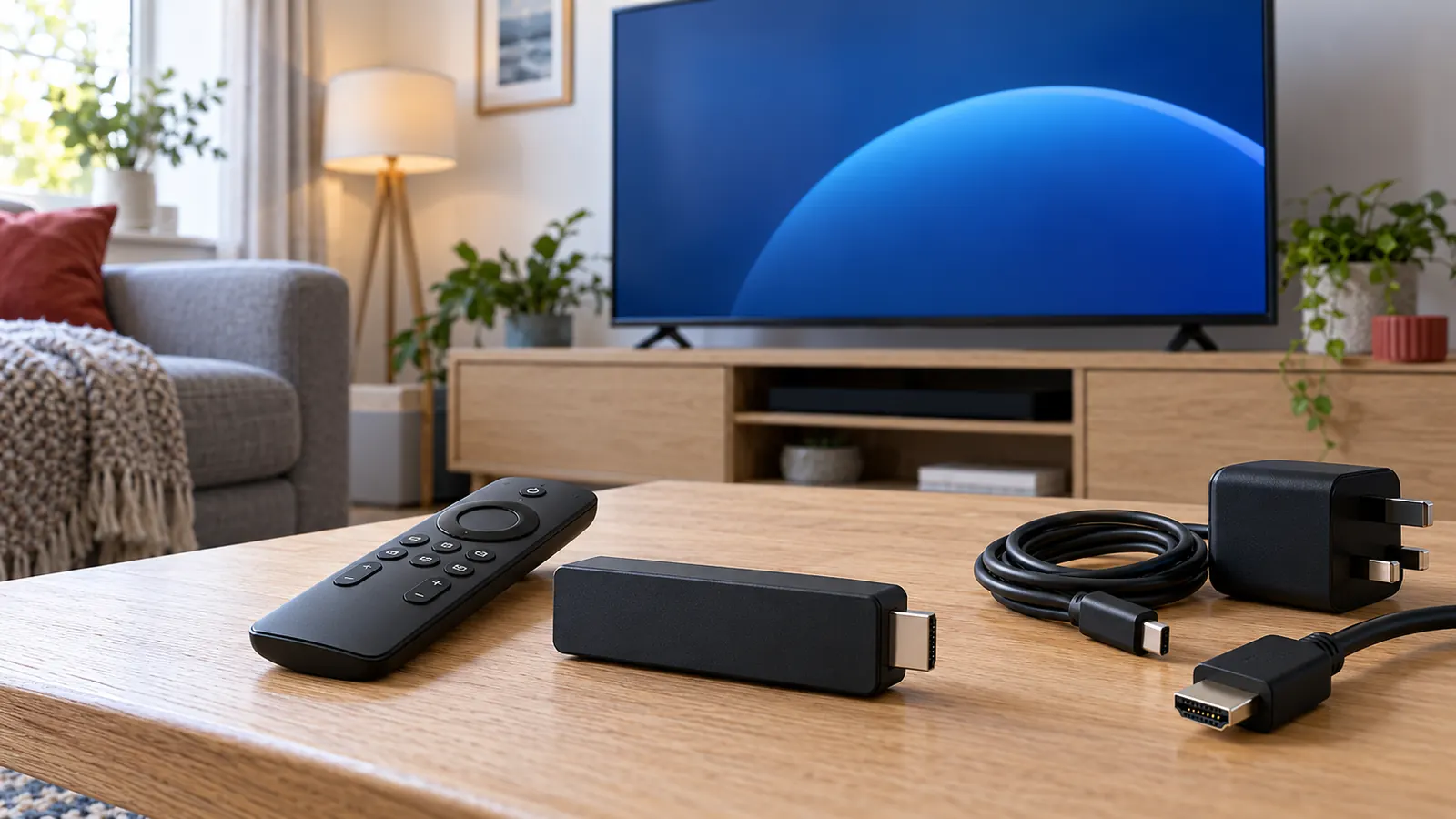
Put everything within reach before the television goes behind a cabinet. You need the stick, the supplied remote, fresh batteries, the power cable and any power adapter or extender included with your model. You also need an available HDMI port, your Wi-Fi name and password, and the sign-in details for an Amazon account.
- Television: an available HDMI input. A 4K television is required to see 4K output.
- Power: use the cable and power method specified for the exact generation. Do not assume that another model’s cable is equivalent.
- Network: have the correct Wi-Fi password ready. Note whether you normally use a main or guest network.
- Account: have access to the email address or phone used for the Amazon account, plus any verification method.
- Remote: install the batteries with the polarity shown in the compartment.
Do not begin by installing apps. First establish that the device can display a stable picture, connect to the network and complete system updates. This order gives every later problem a clear starting point.
Fire Stick 4K setup guide: nine steps from HDMI to the Home screen
1. Connect the stick to a suitable HDMI input
Insert the device into an available HDMI port. Use the supplied HDMI extender if the stick does not fit comfortably, blocks another connection or sits tightly against the television. Never force the connector. Note the port label, such as HDMI 1 or HDMI 2, because you will select it with the television remote.
2. Connect the correct power cable
Follow the instructions supplied for your generation. Amazon’s 2026 Fire TV Stick 4K third-generation setup uses its included USB-C cable and a compatible television USB port. Other 4K sticks may use a separate adapter or a different connector arrangement. If the screen reports insufficient power, restarts repeatedly or goes blank, return to the approved power method before changing software settings.
3. Select the matching television input
Turn on the television and choose the HDMI input you noted. The Fire TV screen can take a moment to appear during first boot. If the TV says “no signal”, check the selected input, reseat both connections and confirm that the device has power. Test another HDMI port only after those checks.
4. Pair the remote
Most new remotes pair during startup. If yours does not respond, follow the on-screen pairing prompt and move close to the stick. Check the batteries before treating it as a software failure. Use the television remote only to change the TV input; continue the Fire TV setup with the Fire TV remote.
5. Choose language and connect to Wi-Fi
Select your preferred language and choose the correct network name. Enter the password carefully; the Fire TV keyboard makes similar characters easy to confuse. If two networks share nearly the same name, confirm which one belongs to your router rather than repeatedly retrying a guest network with different restrictions.
6. Allow the first software update to finish
A new device may download and install updates before reaching the Home screen. Keep it powered and connected. Do not unplug it because the progress appears slow. The first boot is the worst time to judge everyday performance because setup, account registration and updates can run together.
7. Sign in to your Amazon account
Use the on-screen method available for your model. Amazon’s current instructions may offer registration through a web address and a displayed code, which avoids typing a long password with the remote. Confirm the domain shown on the television before entering credentials on another device.
8. Review privacy, parental and content settings
Read the prompts rather than accepting every default. Decide whether you want parental controls, purchase protection and personalised recommendations. A PIN is useful when children can access the remote or when you want to prevent accidental rentals. Store it somewhere private and recoverable.
9. Confirm picture and sound before adding apps
Open the display and audio settings, but change only what you understand. Start with automatic resolution and the normal audio option recommended for the connected television or sound system. Play a legitimate 4K title from a supported service to establish a baseline. If that works, the HDMI, network and core device setup are probably sound.
Amazon also maintains model-specific Fire TV setup instructions. Use that page when the items in your box or power arrangement differ from this overview.
Fire OS versus Vega OS: choose the right app route
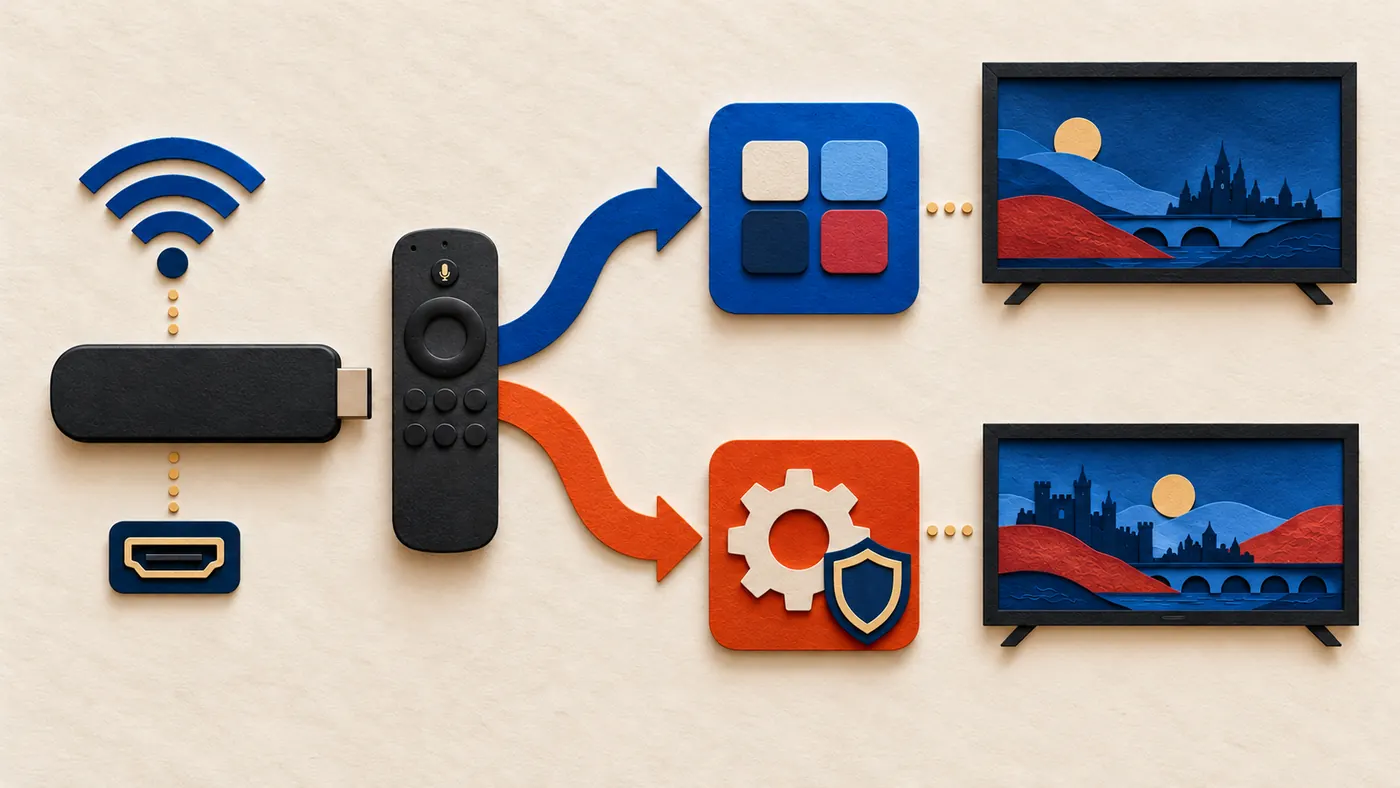
Fire OS is based on Android. Vega OS is not. That distinction matters more than the marketing name on the box. Instructions that ask you to enable developer options and install an Android APK may be relevant to a compatible Fire OS model, but they do not turn an Android package into a Vega application.
On either platform, start with the device’s supported app store and check the listing for your model. Read the developer name, update date, privacy information and whether the player supports the login format you actually have. Avoid modified “premium unlocked” packages and anonymous download codes. They create security and maintenance risks while making troubleshooting harder.
Installing an IPTV player does not include television channels. The player, its optional licence and a lawful content source are separate. This is explained in more detail in our Firestick IPTV app comparison, including TiviMate, Sparkle TV, iMPlayer and Kodi for compatible devices.
How to test one app without creating confusion
- Install one compatible player from a trustworthy source.
- Add only the authorised account or playlist details you were given.
- Open several permitted live streams and one on-demand title if available.
- Check the guide, subtitles and audio tracks you genuinely use.
- Make a short favourites list before reorganising every category.
If something fails, record the exact device model, operating system, app version and error message. “Firestick 4K” alone is no longer enough information for useful support.
How to get a stable 4K picture without over-tuning
Let automatic resolution establish the baseline
Automatic display settings are the safest starting point because the stick and television negotiate compatible output. Forcing a resolution or colour mode can produce a blank screen or an unstable handshake. Change one setting at a time and keep a note of the previous value.
Use an HDMI path that supports the features you expect
Some televisions reserve their full bandwidth or enhanced colour mode for certain HDMI inputs. A soundbar or receiver can also become part of the signal path. If 4K works when the stick connects directly to the television but not through another device, compare the intermediate device’s input and output support before blaming the app.
Treat Wi-Fi as part of the setup
A strong signal icon does not guarantee an uncongested connection. Keep the stick and router away from obvious obstructions where practical. If your router offers more than one band, test the normal network used by your other streaming devices. Do not change channel, DNS, VPN and player settings together; you will not know which change helped.
Know the difference between device output and source quality
A 4K-capable stick can output 4K, but it cannot turn a low-resolution source into native 4K detail. The television, HDMI path, application, account tier, programme and network all affect the final result. Verify one known legitimate 4K title before diagnosing a provider-specific stream.
Keep free storage available
Updates and app caches need space. Remove apps you no longer use and restart the device after major updates if menus become sluggish. Do not install several nearly identical players “just in case”. One or two maintained apps are easier to update, secure and troubleshoot.
Common Fire Stick 4K setup problems and sensible fixes
The television shows no signal
Confirm the HDMI input, power connection and physical seating of the stick. Try the extender if space is tight. Then test another HDMI port. If another source works through the same port, record that fact before contacting support.
The remote will not pair
Replace or reseat the batteries, move close to the device and follow the pairing prompt shown for your remote. Remove nearby obstructions. Avoid resetting the entire stick before a basic battery and pairing check.
Wi-Fi setup keeps rejecting the password
Re-enter it slowly and check capital letters, spaces and similar characters. Restart the router only if other devices also have trouble. If the Fire TV sees the network but cannot join, compare the router’s guest isolation, access controls and security mode.
The screen flickers or becomes black
Return display settings to automatic if possible. Check whether the problem occurs on the Home screen, in one app or only with one title. A problem limited to one app or stream points in a different direction from a system-wide HDMI failure.
Audio is missing or out of sync
Test the TV speakers before troubleshooting a soundbar. Then check the Fire TV audio output and the television’s audio mode. Note whether every app is affected. Repeatedly switching formats without a baseline can create a second problem.
An app from an old tutorial is unavailable
Check the device’s operating system and current store listing. The tutorial may apply to Fire OS while your device uses Vega OS, or the developer may no longer support that generation. Choose a current compatible player instead of forcing an unrelated package onto the device.
Fire Stick 4K setup guide: frequently asked questions
Do I need a 4K television to use a Fire TV Stick 4K?
The device can be used with a compatible lower-resolution television, but you need a 4K display and a suitable 4K source to see 4K output. Check the television’s HDMI capabilities and the device specifications for your generation.
Can I power every Fire Stick 4K from the television USB port?
No single answer applies to every generation. Follow the supplied instructions for the exact model. Amazon’s 2026 third-generation setup describes direct power through a compatible television USB port, while other generations may use a different power arrangement.
Can I install Android APK files on a Vega OS Fire TV Stick 4K?
No. Vega OS is not Android-based Fire OS, so an Android APK is not a compatible installation package. Use applications listed for the exact Vega device in its supported store.
Why does my new Fire Stick 4K take time during the first setup?
The device may be registering the account, downloading updates and preparing services at the same time. Keep it powered and connected. If progress stops completely, follow Amazon’s model-specific support steps rather than disconnecting it repeatedly.
Which IPTV app should I install after setup?
Choose a player that supports both your device operating system and the login format supplied for your authorised source. Our separate Firestick app comparison explains the practical differences without assuming one player is best for everyone.
A clean setup is easier to maintain
The most useful step in this guide happens before you connect a cable: identify the model. Once you know whether the device runs Fire OS or Vega OS, the rest becomes much clearer. Complete the core Amazon setup first, test picture and sound, then add one compatible app at a time.
For device-specific player configuration, continue with the IPTV on Firestick UK guide. You can also browse the full IPTV Guides UK library or compare IPTV subscription plans after confirming that your intended device and app are compatible.
Editorial note: BritStream sells subscription plans, so this page is commercial-provider guidance rather than an independent laboratory review. Hardware and operating-system details were checked against Amazon documentation on 23 October 2026. No app endorsement, network-speed guarantee or universal device compatibility is claimed.