
Choose your player, not another headache
Best IPTV Apps for Firestick UK: 4 Practical Picks
The best IPTV apps for Firestick UK viewers are the ones that make everyday watching easier: a readable programme guide, sensible remote controls and a reliable way to open your authorised streams. A long feature list is less useful if finding tonight’s programme takes twenty button presses.
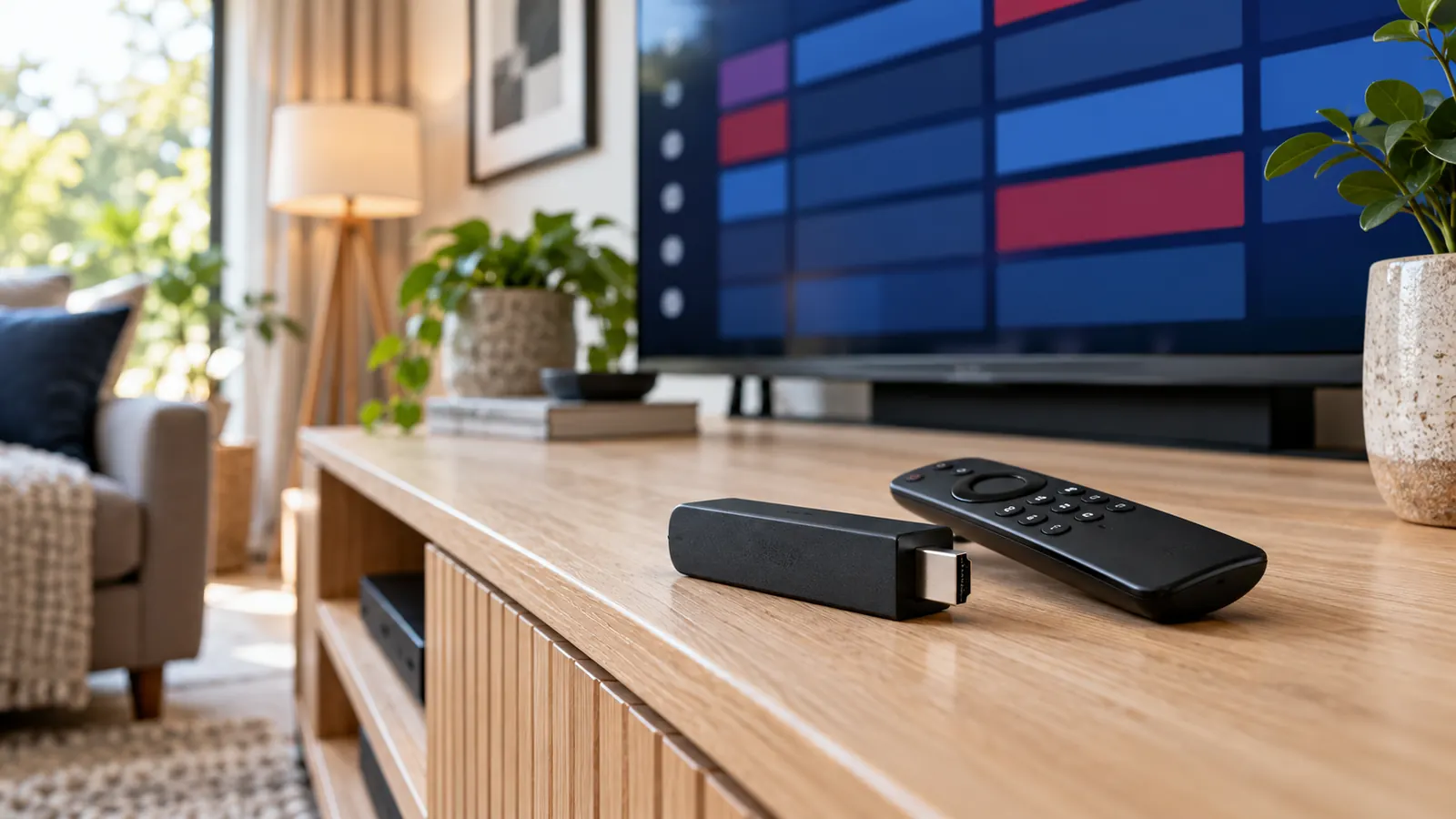
Before comparing apps: is your Firestick running Fire OS or Vega OS?
“Works on Firestick” is no longer a sufficiently precise compatibility claim. Amazon sells different generations under similar names, and the operating system matters more than the shape of the remote. An old installation video may describe a perfectly reasonable process for one model and an impossible process for another.
Amazon’s device documentation identifies the Fire TV Stick 4K Select (2025) and Fire TV Stick HD (2026) as Vega OS devices. Other models, including the Fire TV Stick 4K Max second generation, use Android-based Fire OS. A normal Android APK installation route does not carry over to Vega OS. Check the exact model against Amazon’s official device identification list, rather than assuming that every device with “4K” in its name behaves alike.
This comparison primarily concerns compatible Fire OS devices. For a Vega device, check the app’s current Amazon Appstore listing and supported-device information first. Do not buy a player licence on the assumption that an Android download will install. If compatibility is unclear, ask the developer with your model name and software version before spending money.
This first check saves more time than trying five different download links. Write the model down now; you will also need it if you later ask for help with a blank screen, missing audio or an installation error.
Best IPTV apps for Firestick UK: the quick comparison
There is no single winner for every household. Someone who watches live channels through a guide has different needs from someone organising several televisions or integrating a home media library. Use the table to narrow your choice to one or two apps, then test your actual source.
| Player | Consider it for | Check before paying |
|---|---|---|
| TiviMate | Guide-led television viewing | Device compatibility and which features need Premium |
| Sparkle TV | PVR workflows and supported home-TV sources | Plus features, recording storage and source support |
| iMPlayer | Managing settings across several devices | Licence limits and whether cloud management suits you |
| Kodi + IPTV Simple | An existing Kodi media-centre setup | M3U/XMLTV configuration and maintenance effort |
All four require a suitable content source; installing a player does not give you a television package. App purchases, device licences and content subscriptions are separate decisions. Treat a claim of unlimited premium television bundled with an unofficial player download as a reason to pause, not a bonus.
How we made this shortlist: we reviewed official developer descriptions and documentation for compatibility, navigation, playlist handling and everyday usefulness. We did not run a laboratory benchmark or a side-by-side playback test. The recommendations below are editorial judgements about fit, with limitations stated where they matter.
1. TiviMate: a shortlist choice for guide-first viewing
TiviMate makes sense to investigate if your ideal evening starts with a channel guide rather than a wall of streaming-service tiles. The developer describes a television-focused player with multiple playlists, favourites, search, recording, catch-up and multiview features. It also makes clear that the app supplies no content and that Premium unlocks player features, not a television subscription. Check the current feature and purchase details on the official TiviMate website.
Who should consider it?
Think of a household that mainly switches between a familiar set of channels. Its useful test is not “How many options are in Settings?” It is “Can everyone find the guide, open favourites and return to the last screen without help?” If that describes your home, a TV-first player belongs near the top of your shortlist.
Keep the first setup deliberately small. Add your authorised source, make a favourites list with a handful of channels, and check the programme information. You can organise hundreds of entries later. Starting with a large imported list makes it harder to tell whether a problem comes from the app, the source or simply unfamiliar navigation.
What is the catch?
Do not pay for an advanced feature until you know what you need it to do. Catch-up still requires an available archive, and recording needs a workable storage arrangement. A premium badge cannot repair a stream that is unavailable at its source. If basic viewing is all you need, judge the ordinary evening experience before the extras.
2. Sparkle TV: worth comparing for a PVR-style setup
Sparkle TV’s developer listing describes a DVR/PVR player supporting M3U, Xtream-compatible sources and XMLTV, alongside sources such as HDHomeRun, Jellyfin and Tvheadend. It lists timeshift, scheduled recording and multiview among features requiring Plus. No channels are included. Consult the Sparkle TV developer listing and follow its developer links rather than a similarly named subscription website.
Who should consider it?
Put Sparkle on your comparison list when you want a more traditional television workflow, or already have a supported home-TV source. Your first question should be whether that particular source works with the functions you care about. Having the right format on a compatibility list is only the beginning of a useful setup.
For example, if pausing live television is your priority, test that exact action. Pause, wait, resume and try moving back within the available buffer. If recording matters more, make a short test recording and play it back before trusting the setup with a programme you cannot miss.
What should you check first?
Storage is easy to overlook on a small streaming stick. Plan where recordings or a timeshift buffer will go, check permissions, and keep ordinary device storage from filling up. Also confirm the content source permits the viewing and recording arrangement you intend to use. An attractive PVR interface is useful only when the rest of that chain is ready.
3. iMPlayer: consider it when device management matters
iMPlayer describes live TV, on-demand viewing, programme guides and supported-source recording features. Its distinguishing point for this comparison is its cloud-management dashboard, which can manage playlists and settings across devices. The developer states that it is a player, not a supplier of playlists or television content. Check supported downloads and current licensing on the official iMPlayer website.
Who should consider it?
Imagine being the person who helps set up the living-room television and another screen for a relative. A central management approach may be useful if it reduces repeated remote-control typing and inconsistent settings. That is a reason to investigate iMPlayer, not proof that every household needs a dashboard.
For a single Firestick, keep the decision simpler. Try the guide, search, favourites and normal playback first. If those meet your needs, decide whether the extra management tools solve a real problem. More administration is not automatically a better television experience.
Check the two different device limits
A player licence may cover several installations while your content account permits only one simultaneous stream. Those limits are not interchangeable. Before setting up another room, confirm both the app licence allowance and the source’s connection allowance. Otherwise, one television may stop when another starts, even though both apps were installed correctly.
4. Kodi with IPTV Simple: for an existing media-centre workflow
Kodi is a free, open-source media centre rather than a dedicated subscription service. Its official IPTV Simple Client add-on supports M3U channel lists and XMLTV programme-guide data. The configuration and supported features are documented in the Kodi IPTV Simple Client guide. Use the official repository and your own authorised sources.
Who should consider it?
Kodi is a reasonable option if you already use it for a local media library and want television in the same environment. Starting from scratch solely to watch a small channel list may involve more configuration than you want. That is a workflow trade-off, not a claim that one app produces a better picture.
Keep the setup understandable. Add the official client, configure the supplied playlist and guide, and check the basics before changing skins or adding unrelated extensions. When several things change together, troubleshooting becomes guesswork. A clean configuration is easier to explain to someone helping you.
When would we choose something else?
If the household wants minimal maintenance and a straightforward television interface, compare a dedicated player first. Kodi’s flexibility is valuable when you actually use it. It is less valuable if every update turns into a project. As with the other Android-based choices here, check your Fire TV model rather than following an old “works on all Firesticks” tutorial.
How to choose an IPTV player you will enjoy using
Start with the login format, not the app’s reputation
Ask your authorised provider what details it supplies. An M3U URL points the player to a playlist. XMLTV normally supplies programme-guide information. An Xtream-compatible login usually separates the server address, username and password into fields. These are ways to connect a source, not quality tiers. Choose an app that accepts the supplied method without awkward workarounds.
Protect those details as you would any account password. Playlist URLs can contain credentials. Do not paste them into public forums, screenshot them for social media or enter them into a random online “playlist checker”. When asking for help, describe the error and redact private information.
Test navigation from the sofa
A menu can look clear close to the television and become uncomfortable at your normal viewing distance. Check text size, contrast and the number of button presses needed for common actions. Try searching for a programme, returning to live viewing and changing an audio track. Let the least technical person in the household try it too.
Accessibility deserves the same attention as picture quality. If someone relies on subtitles, test a stream that actually includes them. If a relative struggles with busy menus, hide unnecessary categories where the app allows it. The best configuration is often the one with fewer distractions.
Understand what the guide and catch-up can really do
An electronic programme guide is information about programmes; it is not an archive of them. An entry for yesterday’s programme does not automatically mean it is playable. Likewise, a catch-up button cannot create a recording that the source never supplied. Check a specific programme and time window instead of assuming that every channel has identical support.
For UK viewing, confirm the device’s time and time zone before adjusting guide offsets. A one-hour mismatch around seasonal clock changes can be confusing. Avoid changing several time settings at once: first establish whether the device time is correct, then inspect the guide source and its mapping.
Separate the costs before choosing a paid version
Write down three items: the streaming device, the player licence and the content subscription. Then check whether any app payment renews, how many devices it covers and which account holds the purchase. We have not quoted fixed app prices because regional checkout prices and licensing offers can change. Confirm them with the developer before paying.
A free player may be enough if the features you need are included. A paid option may be worthwhile when it solves a specific inconvenience. Neither price label tells you whether your particular channel source will be reliable. Test the complete setup, not just the purchase screen.
A sensible first setup: fewer changes, clearer results
Once you have chosen a compatible player, follow a short, repeatable process. For a more detailed device walkthrough, use our Firestick IPTV setup guide. This article is about choosing an app; that guide covers the practical setup sequence.
Owners of a 4K model should also check the Fire Stick 4K setup guide, because current generations can use either Fire OS or Vega OS.
- Identify the device. Record its exact model and operating system, and check the current app requirements.
- Use an official distribution route. Prefer the compatible Appstore listing or a download linked by the actual developer. Avoid modified “premium unlocked” APKs and unexplained downloader codes.
- Add one authorised source. Enter its details carefully. Check stray spaces, the server address and which field expects a full URL.
- Test ordinary viewing. Open several permitted streams, confirm sound and subtitles where available, and check whether the guide matches what is playing.
- Organise after it works. Create favourites and adjust navigation only after the basic connection is stable.
- Keep a recovery plan. Note the app version and use supported backup options, storing credentials privately.
What if the app buffers?
Do not immediately uninstall it. First establish the pattern. Does one channel fail, or every channel? Does another authorised service work on the same device? Does the problem happen only when another television starts streaming? These observations tell support far more than “the app is bad”.
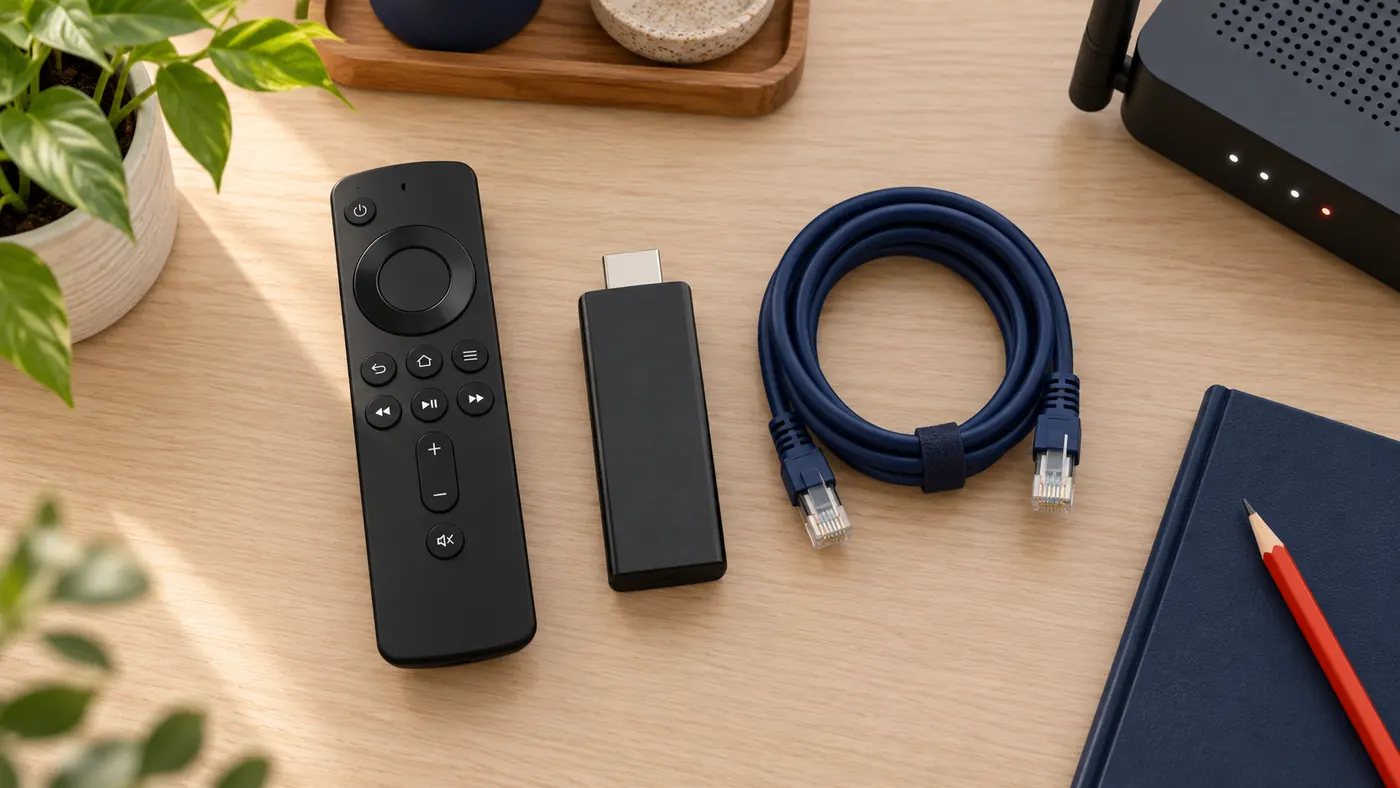
Try one change at a time. Restart the device, check available storage and compare a lower-quality stream if the source provides one. If possible, compare a stable wired connection with the existing Wi-Fi arrangement. Keep a short note of the result. Repeatedly switching players and network settings together makes it harder to identify the actual cause.
What if there is sound but no picture—or picture without sound?
Record whether the issue affects one stream or many, along with your device and app versions. Video decoding and audio-format compatibility can differ across a television, streaming stick and soundbar combination. Follow the player’s documented troubleshooting steps rather than downloading an unknown codec pack. If a settings change makes things worse, restore the previous setting.
What if the guide is empty?
A working channel list does not prove that the guide feed is correct. Check whether your source requires a separate XMLTV address, whether a refresh completes and whether channel identifiers match the supplied guide. If only some channels lack listings, report examples and times. Changing the entire app may not fix missing information upstream.
Best IPTV apps for Firestick UK: frequently asked questions
Which IPTV app should a beginner try first?
On a compatible Fire OS device, shortlist a TV-focused player such as TiviMate or Sparkle TV and test the basic guide, favourites and remote navigation. Choose the one that accepts your authorised source and feels simplest to your household. There is no universal winner without checking the device and source.
Do these apps include channels or an IPTV subscription?
No. The players discussed here require your own suitable content source. A paid player upgrade unlocks app features or licensing rights; it does not automatically provide television channels. Check content access separately from the app purchase.
Will these Android apps work on a Vega OS Fire TV?
Do not assume so. Vega OS is not Android-based Fire OS, so a conventional Android APK installation is not a compatibility solution. Check the current app listing for your exact Vega device before buying or downloading anything.
Can a different app guarantee buffer-free streaming?
No. Playback also depends on the source, account connection limits, home network, device and media format. Another player can be a useful diagnostic comparison, but it cannot guarantee that an unavailable or unstable source becomes reliable.
Can I use the same player on two televisions?
Check both the player’s device-licence terms and your content account’s simultaneous-connection allowance. Being allowed to install an app on two devices does not necessarily mean the source permits two streams at the same time.
Are these images real screenshots of the apps?
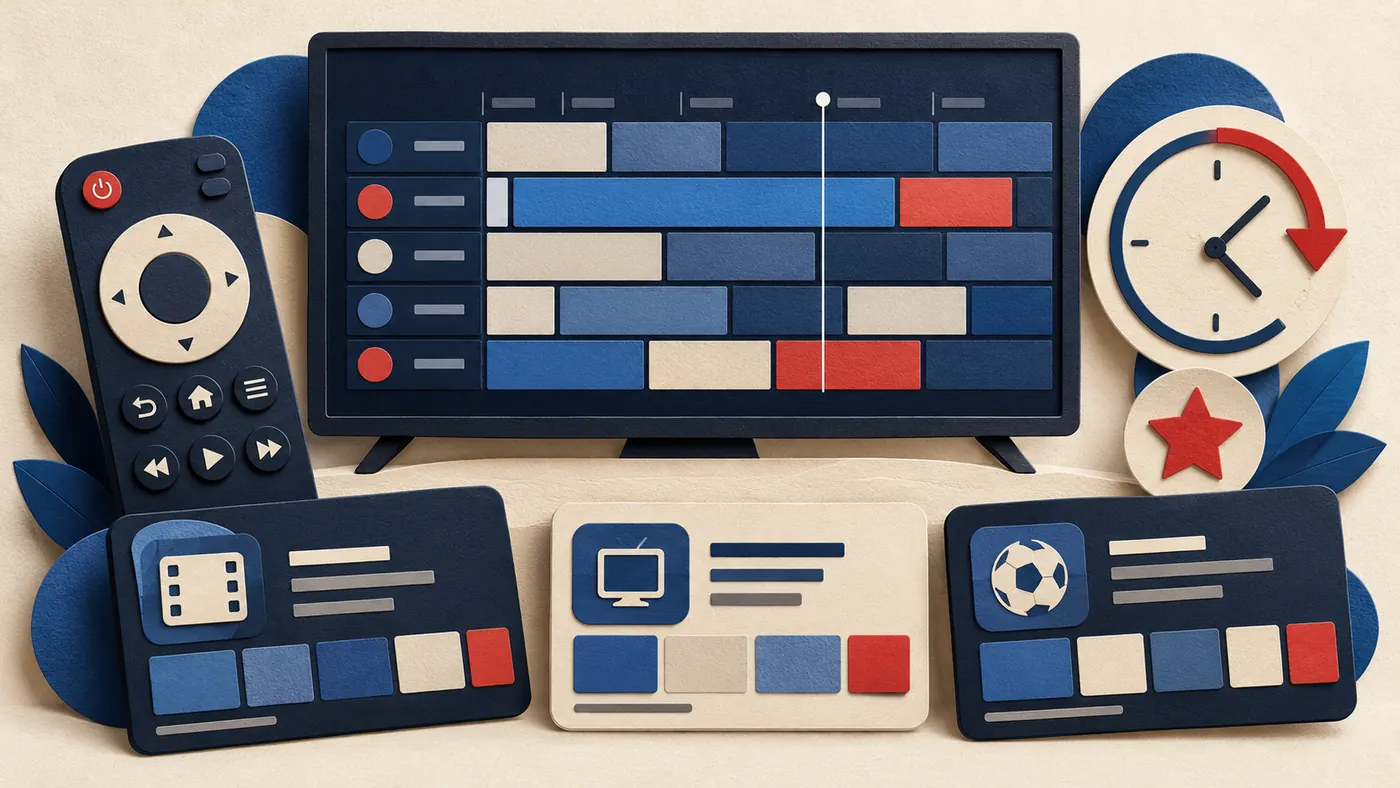
No. The three images are AI-generated editorial illustrations made for this guide. They explain the device setup and selection process; they are not evidence of an app’s actual interface or a hands-on product test.
Our recommendation: choose the simplest player that fits
Start with compatibility, then match the app to the job. Compare TiviMate for guide-led viewing, Sparkle TV for a PVR-oriented workflow, iMPlayer for multi-device administration and Kodi for an existing media-centre environment. After that, let your own authorised source and everyday remote-control experience decide.
If you are arranging a BritStream setup, tell support which Fire TV model and player you use before choosing from our IPTV subscription plans. For other televisions and devices, visit the BritStream IPTV guides. A clear compatibility check today is more useful than paying for features you cannot use tomorrow.
Editorial note: BritStream offers subscriptions, so this guide is published by a commercial provider, not an independent testing laboratory. App recommendations are based on the linked developer documentation reviewed on 23 October 2026. No playback-speed ranking, paid app endorsement or guaranteed service compatibility is claimed. Use only content you are authorised to access.