
UK device setup guide
IPTV on Google TV Streamer: Setup, Apps and Troubleshooting
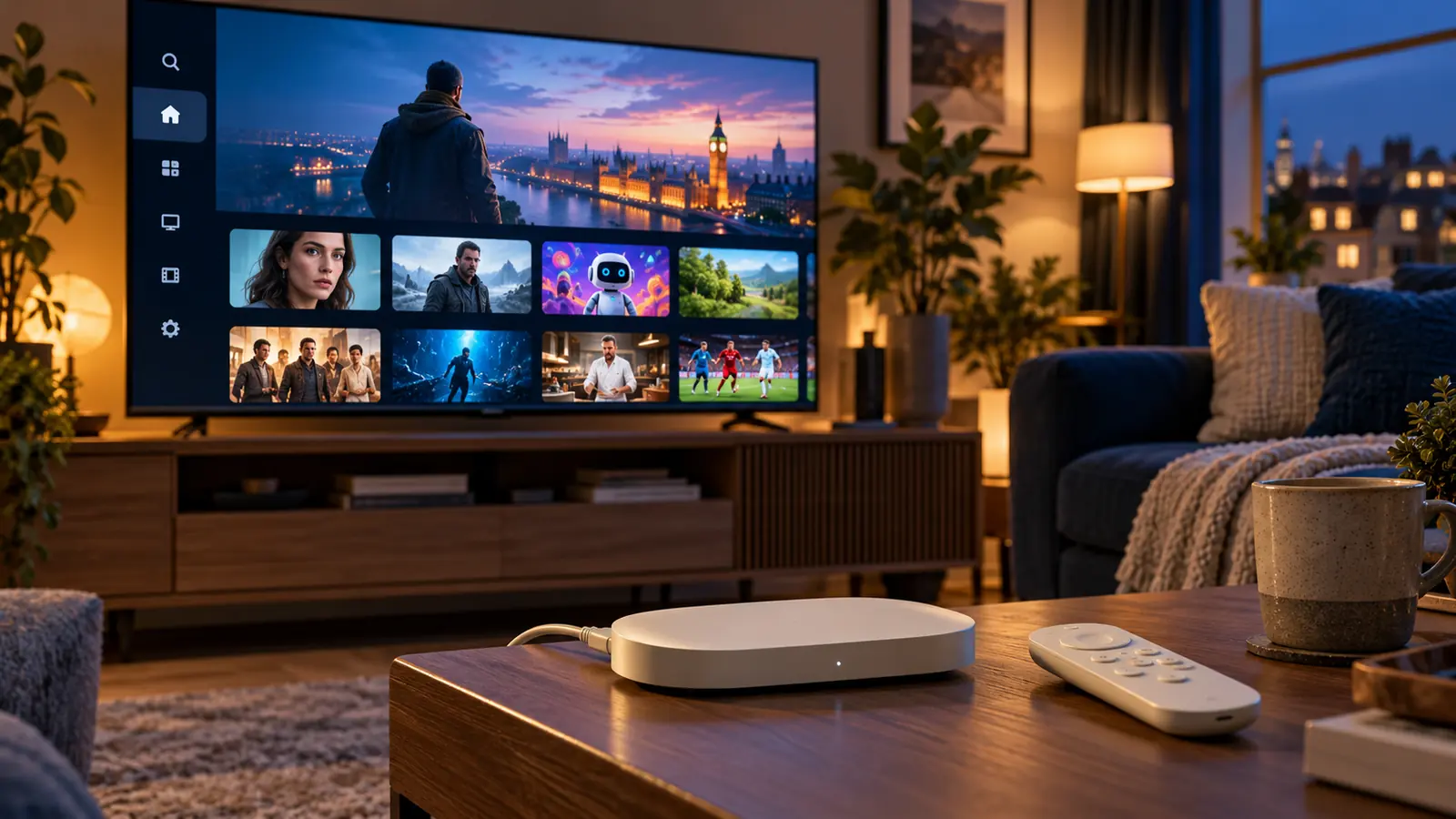
You can watch authorised IPTV on Google TV Streamer by installing a compatible player, adding details supplied by your service and testing the connection on your own television. The box provides the platform; it does not itself include an IPTV subscription or guarantee access to every channel.
The quick answer
Connect the Google TV Streamer to HDMI and power, complete Google TV setup, then install a compatible IPTV player from the device’s app store. Follow your provider’s instructions to add your authorised playlist or login. Check live playback, programme guide data, audio, subtitles and performance at your usual viewing time. An Ethernet connection is built in if Wi-Fi is unreliable.
What you need before you start
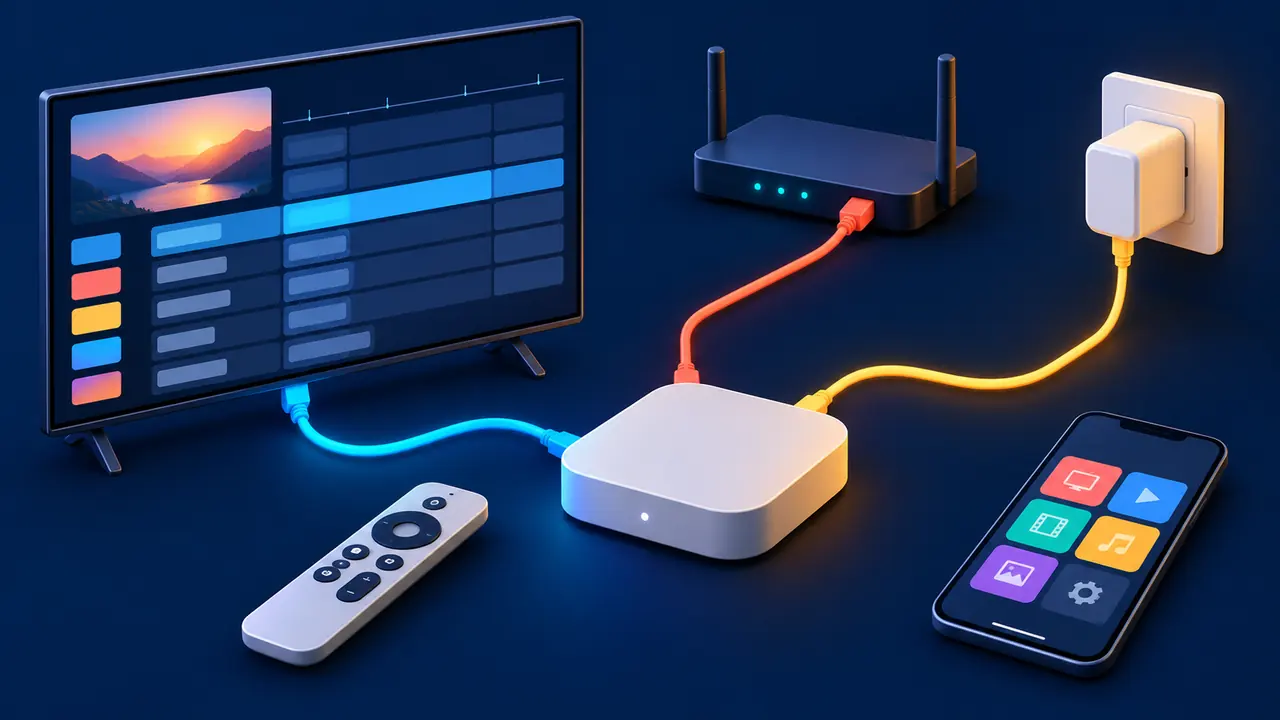
Picture the setup as three separate pieces. The Google TV Streamer is the hardware connected to your television. An IPTV player is the app that presents a programme guide and plays compatible streams. A service supplies the authorised content and any playlist or login details. Buying the box does not automatically buy a service, and installing a player does not create channels.
Have these ready before you sit down with the remote:
- A Google TV Streamer 4K, its supplied power adapter and cable, remote and batteries.
- A television or monitor with an available HDMI input. Google says the certified HDMI cable is sold separately.
- A Google account and a working home internet connection using Wi-Fi or Ethernet.
- A compatible player available for your device and UK account, plus authorised service details if your provider requires them.
- A phone for setup when the on-screen instructions ask for one, or the remote for the manual setup option.
The device supports up to 4K HDR at 60 frames per second, has 4 GB of memory, 32 GB of storage and a gigabit Ethernet port. These are hardware capabilities, not a promise that every stream, app or television will output 4K. The source, app, connection and display must all support the chosen format. Google’s official specifications list the ports and requirements.
Already have Chromecast with Google TV?
Many app and menu principles are similar, but the hardware is different. The Google TV Streamer has a built-in Ethernet socket; Chromecast with Google TV uses a separate compatible Ethernet adapter. Do not order an adapter for the Streamer simply because an older Chromecast tutorial mentions one.
Set up IPTV on Google TV Streamer
Allow time for the initial software update. The first setup may look different after future software changes, so follow the labels shown on your screen rather than relying on the exact position of every tile.
- Connect HDMI. Run a suitable HDMI cable from the Streamer to the television. Note the input name, such as HDMI 2. Use the supplied power cable and adapter in a wall socket.
- Select the input. Turn on the television and choose the HDMI input used by the Streamer. If the screen is blank, check both cable ends and the selected input before changing network settings.
- Pair the remote. Follow the on-screen prompt. Google’s setup guidance describes holding Back and Home when pairing is needed; the interface may guide you through this automatically.
- Choose language and region. Select the UK where appropriate. App availability, catalogue and payment options can vary by region and account.
- Connect the network. Select your Wi-Fi network and enter its password, or attach Ethernet to the device and router. Keep the router password private.
- Sign in and update. Complete the Google account prompts and let any system update finish. Do not disconnect power while an update is installing.
- Check picture and remote controls. Confirm the television shows a stable image and that volume and power buttons control the intended equipment. Then open the app search.
Google’s Google TV setup instructions describe phone and manual setup. If the phone route fails, choose the manual option on the television.
Choose a player that fits your service
A good app is one you can use comfortably with the remote and that accepts the login method your provider actually supplies. A long feature list is less useful if you cannot find yesterday’s favourite channel without wrestling through six menus.
From the home screen, use Search or the Apps tab. Search for the recommended player and inspect its listing. If available for your device and region, select Install. Google explains these steps in its guide to installing apps on Google TV.
Before installing, check the developer, updates, device compatibility and price. A free download may charge for activation or extra features. Player charges are separate from a content subscription. Confirm the UK listing: not every Android phone app has a remote-friendly television version.
Prefer official app-store listings and reputable developers. Avoid random links in unsolicited messages and apps asking for unnecessary device-wide access. If an app is unavailable, ask your authorised provider for a supported alternative.
Look for
Remote-friendly navigation, favourites, search, a clear programme guide, appropriate login support, updates and an understandable privacy policy.
Check before paying
Whether the player itself charges, whether your chosen login method is supported and whether the app’s features work on your device and account region.
Add your authorised playlist or login
Your provider may supply an M3U playlist URL, or a server address with a username and password, often called Xtream-style credentials. The correct format depends on the app and provider.
- Open the player and choose the setup method that matches the information your provider supplied.
- Enter the address or server, username and password carefully. Check full stops, slashes and uppercase characters; one mistyped character is enough to prevent a login.
- Give the profile a recognisable name if the app offers one. Keep that name simple when more than one household member uses the television.
- Allow the first channel list and programme guide import to finish. Large lists may take longer on the first run than on later launches.
- Open a few authorised channels and an on-demand title, if available, and check the guide and remote controls.
A playlist URL can contain credentials. Treat it like a password and keep it out of screenshots and public posts. Use only content you are entitled to watch. Never share your email password, banking details or one-time verification code to set up a player.
For more device setup and troubleshooting advice, browse our IPTV guides. If you would like to check a device before choosing a plan, you can request an IPTV free trial and confirm the device and test window with support.
Make the guide and remote useful
Once the first picture appears, spend a few minutes checking the guide, favourites and Back button. Everyday navigation matters as much as the first stream.
Programme guide and favourites
The electronic programme guide, or EPG, displays schedules where the service provides matching guide data and the player can read it. If some schedules are missing, refresh the guide inside the app, check the selected time zone and ask the provider whether guide data covers those channels. A guide can also take a little time to populate after a first import.
Create a short favourites list and test search, category order and returning to live television. If one channel lacks a schedule, it may be a mapping or source-data issue rather than a device fault.
Sound, subtitles and picture
Check a few programmes with different audio and subtitle tracks. A feature available on one source may not be available on another. If the image looks soft, check the television output settings and the source resolution as well as your connection. HDR, 4K and surround sound require compatible content, player settings, HDMI path and display or audio equipment.
Test fast movement and ordinary dialogue. Record the channel, app and time if picture or lip-sync problems appear. A precise report helps support identify the cause.
Wi-Fi or Ethernet: which should you use?
The Streamer’s Ethernet port gives you a straightforward wired option. A cable often removes the uncertainty caused by walls, distance and interference between the router and television. It cannot fix a broadband outage, an overloaded home connection or a faulty individual stream, but it is a valuable comparison when diagnosing Wi-Fi.
Wi-Fi is convenient when the router is far away. Give the Streamer ventilation and avoid trapping it among cables if reception is weak. Test available 2.4 GHz and 5 GHz networks in the room; walls and distance affect the result.
Test during your normal viewing hours. Compare another reputable video app, note household downloads and, when possible, try the same content over Ethernet. Our guide covers fixing IPTV buffering in a UK home.
A quick comparison
Both Wi-Fi and Ethernet struggle: investigate broadband, the app and the source. Ethernet works but Wi-Fi struggles: investigate wireless coverage and interference. One channel struggles but others work: report that specific source and time to the provider.
Fix common Google TV Streamer problems
The player does not appear in the app store
Confirm that the device is signed in with the intended account and that the app is offered for Google TV in the UK. Search by its exact name and check the developer. If it remains unavailable, ask the provider for another compatible player. Avoid assuming that an APK from an unknown site is safe or designed for remote control.
Login details are rejected
Check the selected login type first. A playlist address belongs in the playlist field; a server address, username and password belong in the corresponding login fields. Re-enter the details without extra spaces. Ask support whether the test is active and whether the credentials have expired. Do not repeatedly share credentials with unrelated third parties.
The picture pauses or buffers
Compare another channel and another streaming app. Restart the player, check for available updates and inspect Wi-Fi strength. If you can use Ethernet, test it before purchasing network accessories. Changes in stream quality, device workload and household internet usage can all contribute; one short test cannot prove a permanent cause.
The guide is blank or shows the wrong time
Refresh programme data in the player, check the time zone and allow the import to complete. Confirm that your provider supplies guide data for the affected channels. If only a few entries are wrong, ask about channel mapping rather than clearing every app on the device.
The app is slow or unresponsive
Restart the Streamer and check system and app updates. Review available storage and close an unresponsive app through the device settings. Google’s help pages describe checking updates and restarting; menu labels can change. Clearing an app’s data may remove logins and settings, so keep authorised credentials available and use that step only when needed.
No sound or a blank HDMI screen
Confirm the correct television input and HDMI connection. Try another input or cable if available. For sound, check the television or soundbar input, mute status and audio output setting. Simplify the connection temporarily by connecting the Streamer directly to the television to isolate a receiver or soundbar issue.
A factory reset erases device data. Use it only after simpler checks and with your accounts and settings ready to restore. Test after each change so you can identify the fix.
Is the Google TV Streamer the right box for you?
It suits a household that wants a remote-controlled Google TV interface, compatible apps and built-in Ethernet. Memory and storage do not guarantee the speed of a player or stability of a stream.
A small stick can suit a bedroom; a dedicated receiver may fit a service using its portal system. A Smart TV with a supported player may need no new hardware. Compare options in our IPTV box buyer’s guide.
Before buying, check your television’s HDMI input, cable, app availability and service login format. Test the exact device you intend to use.
Google TV Streamer IPTV FAQs
Does Google TV Streamer include an IPTV subscription?
No. The device runs compatible applications but does not automatically include a third-party IPTV subscription. A player and a service can each have their own terms or charges. Verify what you are buying and use content you are entitled to access.
Can I use an M3U playlist or Xtream-style login?
That depends on whether the specific player supports the format and whether your authorised provider supplies those details. Select the matching setup option, enter credentials carefully and keep playlist links private.
Do I need an Ethernet adapter?
Google TV Streamer 4K has an Ethernet port built in, so a separate Ethernet adapter is not needed for that model. You still need an Ethernet cable and an available router port. Older Chromecast with Google TV hardware has different requirements.
Why is the programme guide empty?
The player may still be importing guide data, the time zone may need checking or the service may not supply matching data for that channel. Refresh the guide and ask the provider about the affected channels before resetting the device.
Test your own setup before deciding
A good result is simple to recognise: the player is comfortable with your remote, the guide is useful, the picture and sound meet your needs, and the connection holds up during your normal viewing hours. Keep the device, app and service separate when diagnosing problems and ask for help with a precise description.
Request a device compatibility test when you are ready.