

For IPTV no sound problems, first try another channel and another app on the same device. Check the television and speaker volume, the selected audio output and any Bluetooth connection. If other apps play normally, check the affected channel’s audio track and the player’s audio settings before changing the whole TV setup. This guide takes you through those checks in order.
Menu names vary by device, operating system and player version. Change one setting at a time and test again; note the original setting so you can put it back. Use streams and services you are authorised to access.
Start by locating the silence
Before restarting or changing settings, play a channel that normally has speech. Then try a second channel, a video on demand title if available, and another streaming app on the same device. Finally, try a different TV input or the TV’s own built-in app. Keep the volume low when switching sources: a working source may suddenly be much louder.
- Only one channel is silent: look for an alternate audio track. The channel’s feed may also have an audio fault.
- Several channels in one player are silent, but another app works: inspect the player’s audio track, decoder and output settings.
- Every app on the streaming device is silent: check that device’s audio output, HDMI connection and the TV or soundbar input.
- Every source is silent, including the TV’s own apps: start with the TV’s mute, output and sound test, then the soundbar if you use one.
These comparisons narrow the fault; they do not prove its cause. For example, two apps can use different audio formats even on the same hardware. A silent channel can also recover without changes if the upstream feed is corrected.
IPTV no sound: quick checks first
1. Check volume, mute and the selected speaker
Raise the TV volume a little and check its mute indicator. If you use a soundbar or receiver, check its own volume and mute control too. Select the input that receives the TV’s sound. A remote may control the TV’s volume while the actual audio is going to a separate speaker, so check both devices.
In the TV sound settings, confirm the selected output matches your setup: TV speakers for a direct test, or the appropriate HDMI ARC/eARC, optical or Bluetooth output when using an external speaker. Disconnect or switch off Bluetooth headphones temporarily if the TV or streaming device is sending sound to them. When testing TV speakers, use the TV’s own output menu rather than merely turning off the soundbar.
2. Choose another audio track
While the affected programme is playing, open the player’s audio or language menu. Depending on the app, the control may appear as a speech bubble, an audio icon or a menu item. Try another listed track and wait a few seconds. A stream may contain multiple languages or formats; a selected track can be empty, unavailable or incompatible with the player.
If no track selector appears, do not assume the app has one. Try a different channel and record the name and time of the silent programme. If only that feed fails on more than one compatible device, ask your provider to check it. Do not share your password, playlist URL or other account credentials in a public support post.
3. Restart the player and equipment
Close the player normally and open it again. If that does not help, restart the streaming device through its settings. Restart the television and soundbar using their manufacturer’s instructions, then allow them to reconnect. Re-test the same channel and a known working app. A restart is different from a factory reset and normally preserves your apps and settings.
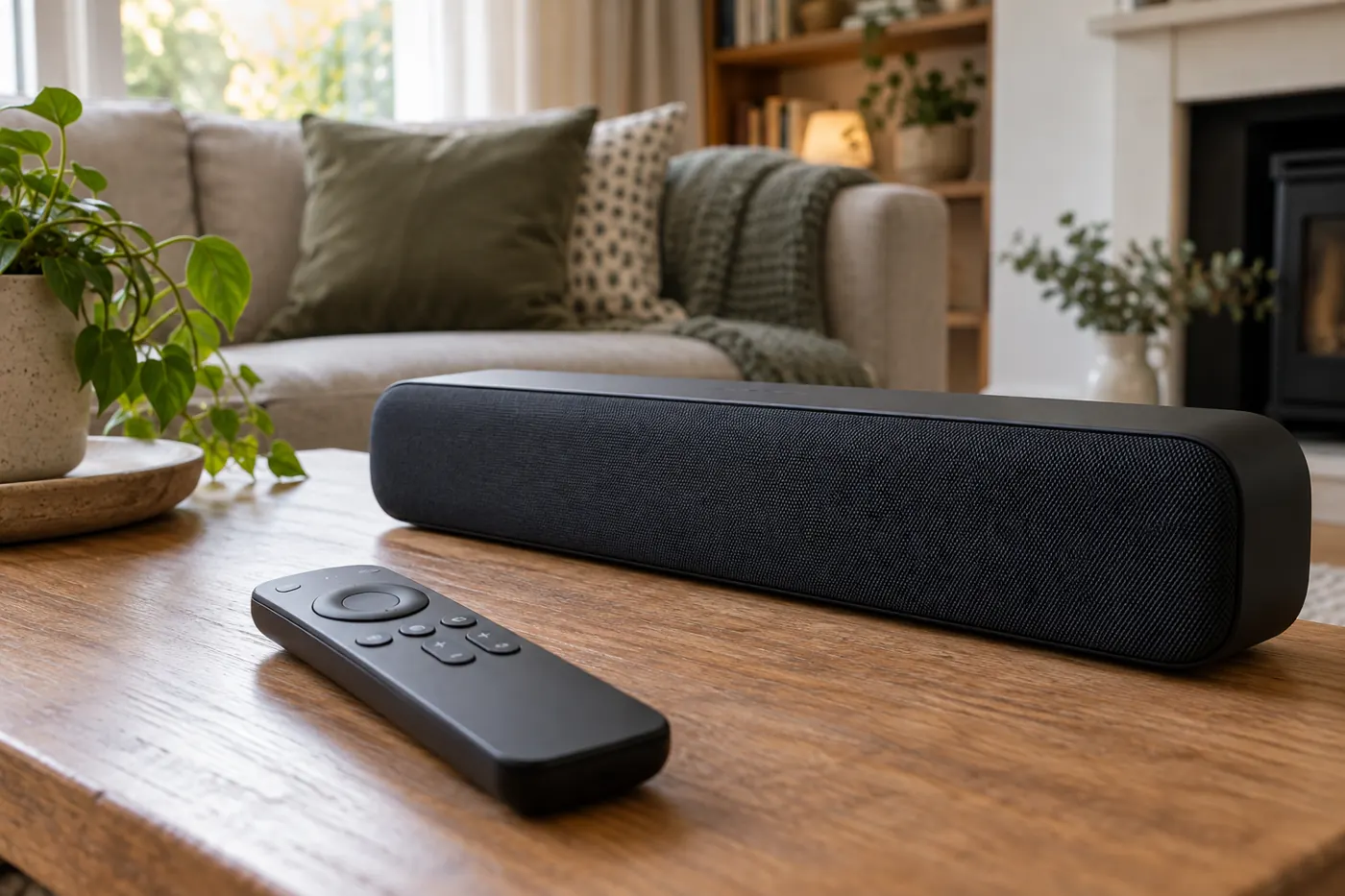
Check audio format and connections
Audio travels through several components: the player, streaming device, HDMI connection, TV and possibly a soundbar or receiver. Each component must handle the format it receives. A picture can work while audio fails because video and audio are processed separately.
If your player offers audio passthrough, try turning it off temporarily. Passthrough sends supported encoded audio onwards for another device to decode; whether that works depends on the complete chain and the content. If there is a choice of decoder or player, try the app’s other supported option and test the same channel. Labels and availability differ across apps. Restore the original setting if there is no improvement.
For diagnosis, select a simpler stereo or PCM output if your device offers it. This may reduce surround sound during the test; it is not a claim that your equipment cannot support surround. If stereo works, investigate compatibility and connection settings before restoring the preferred format. Amazon’s surround sound guidance explains how to check the formats detected by compatible Fire TV devices and the connected equipment.
Check that HDMI plugs are seated securely. If practical, test a different HDMI input or cable, and connect the streaming device directly to the TV to remove a receiver or HDMI switch from the test. Select TV speakers for that comparison. If sound returns, reconnect one component at a time to identify where the failure begins. Turn equipment off before moving cables when the manufacturer recommends it.
Fire TV Stick: use the audio diagnostic
On compatible Fire TV devices, Amazon’s audio troubleshooting instructions say to open Settings, choose Display & Sounds, then Audio and Video Diagnostics, Troubleshoot Audio/Video Issues and No Audio. Follow the on-screen recommendations. The diagnostic is not available on every model, and names can differ by software version.
Compare the IPTV player with another Fire TV app. If both are silent, focus on Fire TV audio output and the TV/speaker connection. If only the player is affected, check its own audio track and decoding options first. Restart the Fire TV if the issue remains. For the hardware setup, see our Fire Stick 4K setup guide.
Samsung TV, Apple TV and Google TV checks
Samsung Smart TV
Open the TV’s sound settings and check the chosen sound output. Test the built-in speakers and another source. If your model provides a sound test, run it according to the TV’s support menu; its location depends on the model. A failed built-in sound test points you toward the TV or connected audio equipment, while a successful test makes the app or its stream more useful to investigate. See Samsung’s UK sound test instructions and our Samsung IPTV setup guide.
Apple TV and Google TV
On Apple TV, inspect the Video and Audio settings and check the selected output. Apple’s no-sound instructions also cover HDMI checks and changing the audio format. On Google TV, inspect the sound or audio output settings shown on your model. In either case, test the TV’s own speakers and a second app before changing advanced formats. If an app offers a different track or decoding option, test that within the app. For device setup, see IPTV on Apple TV and IPTV on Google TV Streamer.
Update carefully; leave data removal until last
Check for updates to your player and device software through their normal settings or official app store. An update may fix compatibility problems, but it can also change menus, so recheck the same channel afterwards. Avoid downloading unknown replacement players or changing network settings solely because the sound is missing.
Some devices offer separate options to clear an app’s cache and clear its data. Clearing app data, uninstalling an app or resetting a device can remove local settings, playlists, favourites, downloaded content and sign-in details. A factory reset can erase the device’s configuration and installed apps. Before considering any of these, check the app and device instructions and make sure you can restore your account and configuration. Never assume a provider can recover locally stored information.
Clearing a cache is generally less disruptive than clearing data, but behaviour varies by app. If you decide to try it, use the option explicitly labelled cache, read the device’s description and test again. Do not select Clear Data or Factory Reset as a shortcut. If sound is absent across all devices for one channel, removing your local data is unlikely to address an upstream fault.
What to tell support
Give support the device model, operating system and player name and version, the affected channel or programme, and when the issue occurred. Explain whether other channels, another app and another device have sound. Mention whether switching audio tracks or using TV speakers made a difference. This evidence helps distinguish a feed issue from an app or output issue. Share account details only through the provider’s trusted support channel, and never send your password.
If the picture is also freezing, follow the separate IPTV buffering fixes to investigate the connection. Sound settings alone will not resolve a weak network.
Frequently asked questions
Why does IPTV have a picture but no sound?
Possible causes include mute or the wrong output, an unavailable audio track, an unsupported format, a connection problem or a silent source feed. Compare channels and another app to decide which path to investigate first.
Why is only one IPTV channel silent?
That channel may use a different audio track or format, or its feed may have a fault. Try another available track and test on another compatible device. If the issue follows the channel, report it with the time and channel name.
Will changing to stereo fix every sound problem?
No. Stereo or PCM can help identify a format compatibility issue, but it cannot repair a muted speaker, a disconnected cable or a source without audio. Record the original setting and restore it if the test does not help.
Should I factory reset my Fire TV for missing sound?
Start with the non-destructive checks above. A factory reset removes device configuration and installed apps, so use it only as a last resort after following the manufacturer’s instructions and preparing to restore your setup.