
If your IPTV app keeps crashing, restart the streaming device first, then check whether the problem affects one app or several. Update the app and device, check available storage, and clear the app cache if your device offers that option. Test after each change. Leave clearing app data or reinstalling until you have saved the details needed to set the app up again.

A crash means the app closes unexpectedly or returns you to the home screen. A channel that buffers while the player stays open is a different symptom: use our IPTV buffering fixes for that. A playlist that refuses to load has its own playlist troubleshooting guide.
Why your IPTV app keeps crashing
Note exactly when the app closes. Does it happen before the sign-in screen, when the guide loads, or only after opening a particular channel? The answer helps you avoid changing settings that are unrelated to the fault.
Try another app on the same device. If several unrelated apps close, focus on the device, its software and free storage. If only one app crashes, focus on that app and its configuration. If only one channel triggers the crash, test a few other channels and ask your provider whether the affected stream is available in another format. Do not share your playlist URL or password in a public forum.
If the device itself restarts, feels unusually hot, or shows a power warning, stop testing the app. Check the supplied power adapter and ventilation and follow the device manufacturer’s support guidance. An app reset cannot fix an inadequate power supply.
Restart the device properly
Close the app and restart the streaming device from its settings. If it is unresponsive, follow the manufacturer’s instructions for safely disconnecting power. For Fire TV, Amazon recommends restarting through settings or unplugging the power adapter for one minute. Plug it back in and wait for the home screen to settle before opening the app.
On a Samsung TV, pressing the power button once may put the TV in standby rather than fully restarting it. Samsung UK recommends disconnecting the TV from the socket for 30 seconds, then reconnecting it. Menu names and restart methods can vary by model.
Restarting does not normally remove saved app settings. If the app now works, use it for a few minutes and try the action that previously caused the crash. If it fails again, continue below.
Update the app and device software
Open the app store on the affected device and check for an update to the player. Install only an update intended for your device from a source you trust. An Android phone package is not automatically suitable for a TV, and an unofficial modified download can introduce new problems.
On Fire TV, Amazon lists Settings > My Fire TV or Devices & Software > About > Check for System Update. On Samsung TVs, the usual route is Settings > Support > Software Update > Update Now. Your menus may differ. Keep the device powered while an update is installing.
If crashes began immediately after an update, record the app and device software versions. Check the app developer’s support information for a known issue. Avoid installing an older package from an unknown website; contact the developer instead. An update may fix a compatibility issue, but it is not proof that every crash has the same cause.
Check free storage
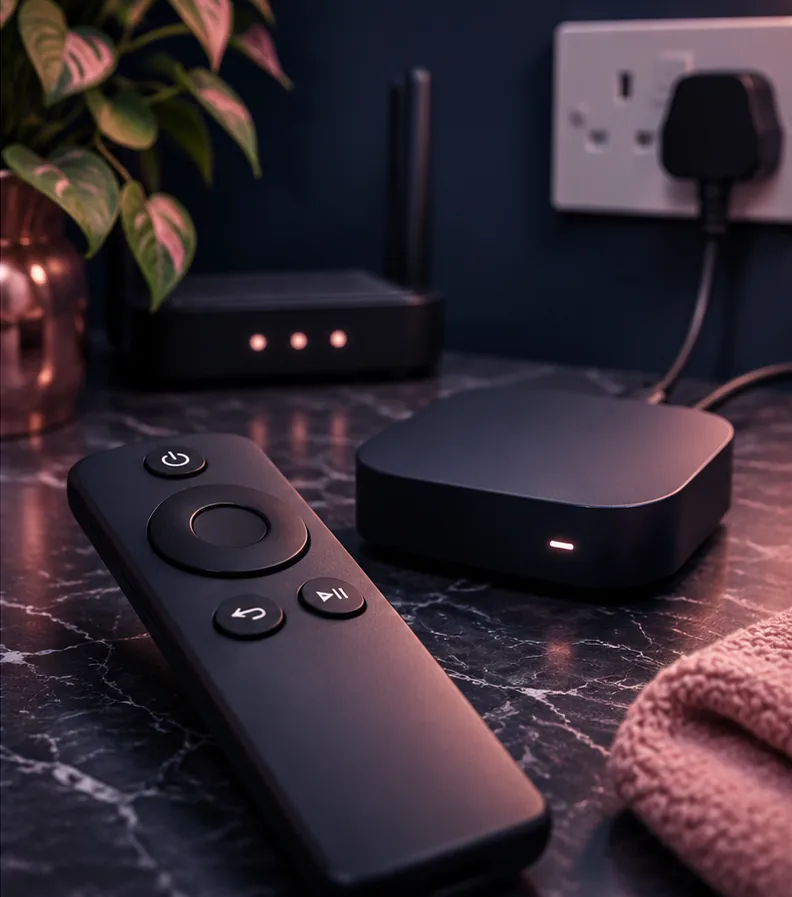
Low storage can prevent an app from saving temporary files or updating properly. Check the storage screen in your device settings. Remove downloads or apps you recognise and no longer need, then restart and test again. Before deleting an app, check whether its downloads, favourites or settings are stored locally and whether you can restore them.
Do not remove system apps or unfamiliar files to make space. If storage is nearly full across the device, deal with that first. If plenty is available and only one player fails, move on to that player’s cache and configuration. More free space is useful, but no fixed amount guarantees that every app will work.
Clear the cache, then test
A cache contains temporary files. Clearing it can remove a damaged temporary file without deliberately resetting the app’s account data. The effect varies by app, so allow the player time to rebuild its guide or thumbnails on the next launch.
On Fire TV, go to Settings > Applications > Manage Installed Applications, select the affected app and choose Clear Cache. Open the app and repeat the action that caused the crash. Amazon’s cache instructions also show Clear Data in the same menu: it is a separate, more disruptive action, so do not select it accidentally.
Some smart TVs do not expose a per-app cache button. Do not assume a menu for one device exists on another. Restart and update first, then consult the manufacturer’s instructions for your exact model.
Check the playlist and guide without exposing credentials
If the app stays open until it loads your playlist or programme guide, note that pattern. A damaged local download, a very large list or an app compatibility issue may be involved, but a crash alone does not identify which one. If the player offers a normal refresh or a way to disable automatic guide loading, try one change at a time and reopen it.
If a separate, known-working playlist is available to you, test it without deleting your original configuration. A test that works narrows the problem to the content or configuration; it does not prove a particular provider is at fault. If the original list fails to load rather than closing the app, follow the playlist checks.
Playlist links and login details may grant access to an account. Send them only through the provider’s trusted support channel when necessary. Screenshots should hide credentials, personal information and device identifiers.
Clear app data or reinstall only after preparing
Clearing app data can sign you out and remove local settings, playlists, favourites, watch history or downloads. Uninstalling can have similar effects. What returns after signing in depends on the app and whether it syncs your data. Neither step should be treated as a harmless cache clear.
Before proceeding, confirm that you can sign back in and restore the playlist using the provider’s instructions. Record any settings you changed, without publishing your credentials. Check whether favourites or recordings can be backed up. If you cannot restore information that matters to you, contact the app developer first.
Once prepared, use the device’s app settings to clear data for the affected app, reopen it and configure it again. If the problem remains, uninstall and reinstall from the appropriate official app store where available. Test the app before adding optional settings, then add your configuration and test again. If the app crashes even before setup, tell the developer; repeatedly resetting it is unlikely to add useful evidence.
Fixes by device
Fire TV and Firestick
Start with a restart, then update Fire OS and the player. Use Manage Installed Applications to inspect storage and clear only that app’s cache. Amazon’s troubleshooting also includes clearing data and reinstalling, but prepare for the loss of local information first. If a Firestick is connected to a TV USB port and the device itself restarts, use the recommended power supply and consult Amazon’s device guidance.
For installation basics and device navigation, see IPTV on Firestick. If another streaming app works reliably but this player still closes after its cache is cleared, record the player version and the exact point of failure for support.
Samsung smart TV
Perform the full restart described above and check for TV software updates. Samsung also recommends reinstalling a problematic app. Deleting it signs you out, so have the sign-in details ready. On some preinstalled apps, Delete may be unavailable and Reinstall may appear instead. Menus differ across TV models.
Samsung lists Smart Hub reset as a last resort. It signs you out of every app, not just the one failing. Make sure you can sign in to all affected apps before considering it. A full factory reset is a broader step and should not be your first response to one crashing player.
Google TV and Android TV
Restart the device and update the player through its available store. In settings, locate Apps, choose the affected player and look for its cache control; labels and paths depend on the device and software version. If a Clear Data option is shown, read the warning above before using it. Check the manufacturer’s support page for your model if the menus differ.
If the player was installed outside the device’s app store, confirm with its developer that the installed version supports your device and operating system. Do not enable additional security permissions or install unknown packages merely to test a crash.
Apple TV
Restart the Apple TV, check for app and tvOS updates, and test another app. If you remove the affected app, check first whether its local data can be restored and whether you have the correct account details. Use the app developer’s own instructions for reinstalling and restoring its configuration. Our Apple TV setup guide covers the device’s basic setup.
What to send support
If the app still closes, collect the device model, operating system version, app name and version, when the problem began, and the exact action that triggers it. Say whether other apps work and which of the steps above you have tried. Include the wording of any error, with personal information hidden.
Contact the app developer when the player itself closes, especially if it crashes before sign-in. Contact the service provider when a particular playlist or channel consistently triggers the issue while the player otherwise works. The two may need to investigate together. Avoid sending passwords in an ordinary support screenshot.
Frequently asked questions
Why does my IPTV app close as soon as I open it?
A temporary app or device problem, outdated software, storage pressure or damaged local data are possible causes. Restart the device and check for updates first. Test another app to see whether the issue is isolated. The precise cause cannot be determined from the symptom alone.
Will clearing the cache delete my playlist?
Cache clearing targets temporary files and is different from clearing app data. However, apps manage local information differently. Check the app’s support instructions and make sure you can restore your configuration before taking a more disruptive action. Clearing data or uninstalling can remove saved settings and sign you out.
Why does the app crash only when the guide opens?
The guide load may trigger an app, local-data or compatibility problem. Try restarting, updating and clearing the cache, then test again. Record whether the crash occurs with another configuration if you have one available. Share the result with the app developer or provider without exposing your playlist credentials.
Should I factory reset my TV or Firestick?
Not as a first step for one app. A factory reset removes device settings and can require you to set up accounts and apps again. Try the narrower steps first and follow your manufacturer’s instructions if support later recommends a reset. Back up anything you need before proceeding.