
With an IPTV black screen with sound, first check whether the picture is missing on one channel, every channel in the player, or the entire TV input. Those three patterns point to different places: a particular stream, the player or device, and the display connection. Start with a working comparison before changing settings or deleting anything.
This guide covers a picture that disappears while audio continues. If the picture plays but the audio is missing, use our IPTV no sound guide instead. If the playlist itself will not open, start with playlist loading checks.
IPTV black screen with sound: four quick comparisons
- Try another channel or programme in the same player. Note whether its picture works and whether the affected item is live TV or on demand.
- Open another legitimate video app on the same device. If its picture works, the TV and HDMI connection can display at least that video format; they are not completely ruled out.
- Open the device home screen and its settings. If even the menus are black, concentrate on the TV input, power and HDMI path first.
- If your subscription permits it, test the same channel on another supported device. Stop playback on the first device if your plan has a connection limit.
Change one thing at a time and return to the same affected channel after each test. Write down the result. A picture returning once is useful, but repeat the test after a few minutes before deciding that the fault is fixed.
What the result tells you
One channel or programme is black
When other channels in the same app play normally, the individual stream or its video format is a sensible starting point. The sound track and picture are separate parts of playback, so hearing audio does not prove that the picture is being delivered or decoded correctly. Try the affected item again later and check whether the provider offers an authorised alternative version. Tell support the exact channel, programme and time; do not post your playlist address or account details in public.
Every channel is black, but the app menus show
Try a second video app and, where supported, the same subscription on another device. If another app works and the same channel plays on another device, the player, its settings or compatibility with that device deserve attention. If all channels fail on several devices, ask the provider to check the source or account. These comparisons narrow the search; no single test proves a cause.
The home screen is black too
A black device menu points beyond a single IPTV stream. Check the TV input, the streaming device’s power supply and the connection between them. If the television’s own menus are also invisible, follow the TV manufacturer’s support instructions. Do not assume that reinstalling the player will repair a display that cannot show the home screen.
Restart playback, then restart the device
Leave the affected channel and return to it once. If that fails, close the player normally and open it again. Some players offer a stop or exit command; simply changing input may leave the app running in the background. Try another channel before and after restarting so you can compare like with like.
Next, restart the streaming device using its settings menu if you can see it. A normal restart does not normally remove your installed apps or account settings. Allow the device to start fully, then reopen the player. If the menu is unavailable, follow the device manufacturer’s power-restart instructions. Avoid repeatedly unplugging cables while devices are updating.
Amazon recommends restarting the Fire TV device as an early step for a blank TV screen. A brief black flash when starting or stopping 4K playback can occur while the display changes mode; a persistent black picture is the issue to investigate here.
Check the HDMI and TV input
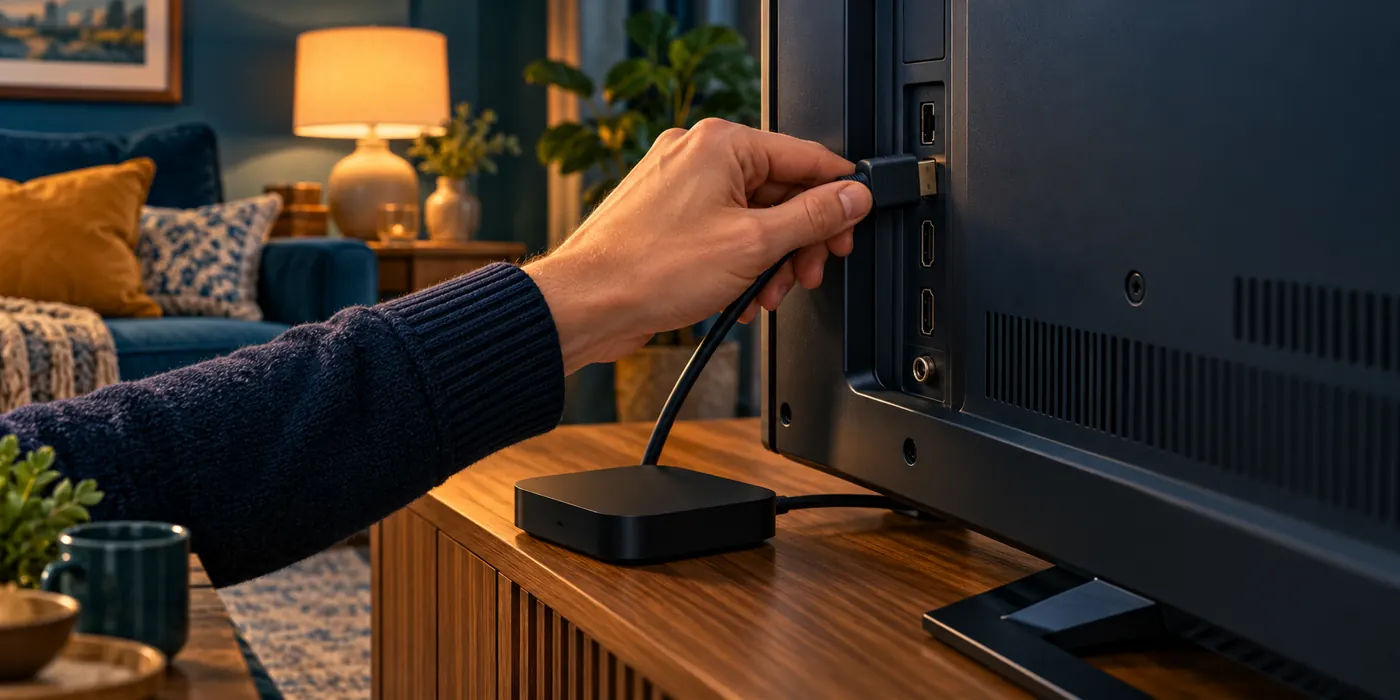
This section applies to an external streaming stick or box. If the app runs directly on your smart TV, skip to the app and TV checks below. First select the TV input that matches the HDMI socket in use. If you cannot see the streaming device’s home screen, confirm that the device is powered using its recommended adapter and cable.
Disconnect and firmly reconnect the HDMI connection, following the device instructions. If the stick uses an HDMI extender, check that connection too. Try another available HDMI input and select it on the television. If a separate cable is used, test a known-working suitable cable. For 4K, Amazon recommends a high-speed HDMI cable.
If the device passes through an AV receiver, soundbar or HDMI switch, connect it directly to the television for a temporary test. Select the correct TV input and test the same channel. If the picture returns, reconnect the other equipment one piece at a time to identify where the failure appears. Check each device’s input and compatibility instructions; a successful direct connection narrows the path but does not identify which component is faulty by itself.
Do not buy a new cable or streaming device until a comparison gives you a reason. If all television inputs and other devices also show no picture, the television or its settings may need separate attention.
Check the player and video settings
Different apps expose different playback controls. Some offer a choice of internal player, external player or hardware and software decoding; others do not. Before changing anything, note the current setting so you can restore it. Consult your app’s own help for your version, and use only an authorised, trusted player that supports your subscription.
If a decoder or player choice is available, change just one option and retry the same affected channel. A software decoder may behave differently from hardware decoding but can put more work on the device and may not support every format. If the picture returns but playback becomes jerky, restore the original choice and report the comparison to the app or service provider. Do not assume every black screen is a codec fault.
Similarly, if the problem appears only on certain high-resolution or HDR programmes, compare an ordinary HD programme. Check that the device, television and any intermediate equipment support the video mode being used. If your device offers an automatic display mode, note the original setting before testing an alternative supported resolution. Return to the original setting if the test makes things worse. Never disable content protection or follow instructions to bypass it.
Fire TV: close the app and clear cache
On a Fire TV device, open Settings → Applications → Manage Installed Applications, select the affected player and choose Force Stop if available. Open the player again and test. Menu names can vary by device and software version.
If the problem remains, the same app screen may offer Clear cache. This removes temporary cached files; it is different from Clear data. Retry the affected item afterwards. Amazon documents the process in its Fire TV app cache and data instructions.
Do not select Clear data as a routine first step. It can remove the player’s local login, playlists, favourites and preferences. Before considering it, confirm that you can sign in again and restore any settings you want to keep. Ask your provider or the app developer what is stored locally. Our Firestick setup guide covers the device more broadly.
Google TV, Android TV and smart TVs
On Google TV or Android TV, restart the device from its settings and check for available system and app updates. Where the installed player’s app settings offer a cache option, clear the cache only and test again. Labels and paths vary between manufacturers. Google’s Google TV troubleshooting guidance describes restarting and updating a slow or unresponsive device.
For an app installed directly on a Samsung, LG or other smart TV, compare a second app and the television’s own menu first. Restart the TV according to its manufacturer’s instructions, then check for an app and TV software update. Available player and cache controls differ by model. If only one channel fails in one app, provide the app developer and service provider with that comparison instead of resetting the whole television.
For an external Google TV device, the Google TV Streamer guide explains setup and common device checks. A built-in TV app and an external HDMI device use different display paths, so note which one you are testing.
When to check the connection
A network problem can interrupt video, but sound alone does not establish that your broadband is at fault. Look for other symptoms such as loading messages, repeated pauses or failures in other apps. Compare another channel at the same time. If several services struggle, restart the router according to its instructions and allow it to reconnect fully; this briefly interrupts other people using the connection.
Where practical, try a wired connection or move the device closer to the router as a comparison. A speed test is a snapshot, so repeat it near the streaming device and during the affected period. If the picture is constantly stopping rather than remaining black with sound, follow the separate IPTV buffering checks.
Reinstall or reset only after preserving your settings
Reinstalling an app can remove local playlists, favourites, downloaded content, logins and preferences. Before uninstalling, verify your account details through your provider’s normal secure channel, check whether your app can back up its configuration and confirm how to restore it. Do not share passwords, full playlist URLs or access tokens in a support ticket unless the provider’s secure process explicitly requires them. Reinstall only from a trusted source supported by your device.
A factory reset is more disruptive: it can erase the device’s accounts, apps and settings, and may require the device to be set up again. It should be a last resort after the comparisons above and after consulting the manufacturer. Back up what the device supports and make sure you have access to the accounts needed for setup. A reset cannot repair a provider’s broken stream or a faulty HDMI cable.
What to tell support
Useful details are the affected channel or programme, approximate time and time zone, whether sound continues, and whether the app menu remains visible. Include the device and TV model, app version, connection type and whether another channel, app or supported device worked. Mention any receiver or HDMI switch in the path and the result of a direct connection. Describe one change at a time and its result.
If the issue affects one programme across multiple devices, contact the content provider first. If only one app fails on one device while other apps work, the player developer may be better placed to investigate. If no device menu appears on that TV input, start with the device and TV manufacturers. Keep a record of the tests so you do not have to repeat destructive steps unnecessarily.
Frequently asked questions
Why does IPTV have sound but no picture?
The audio and video paths can behave differently. A stream issue, player compatibility, device setting or display connection may affect the picture. Compare channels, apps and devices to narrow it down before choosing a fix.
Does a black screen always mean the IPTV service is down?
No. If the same channel works on another permitted device, investigate the first device and its player or display path. If the same item fails across devices, ask the provider to check it. Neither result alone guarantees a diagnosis.
Will clearing cache delete my playlist?
Cache and app data are separate controls on Fire TV. Clearing cache removes temporary files, while clearing data or uninstalling can remove local configuration. Confirm the app’s backup and restore options before choosing either data removal or uninstalling.
Should I factory reset my Firestick?
Not as an initial fix. A factory reset can remove apps, accounts and settings. First compare channels and apps, restart, and check HDMI. If a reset is still appropriate, follow Amazon’s instructions and prepare to set the device up again.