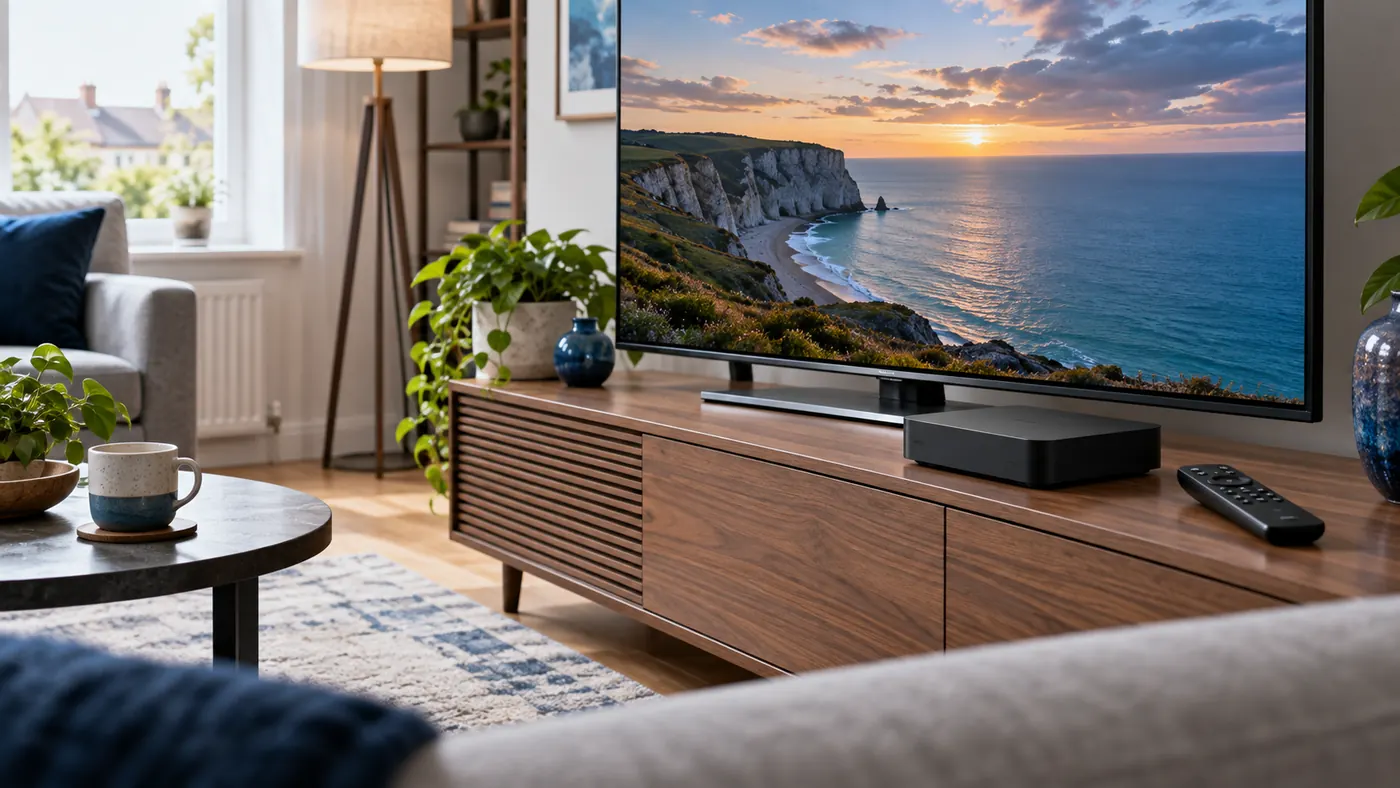
To set up IPTV on NVIDIA Shield, connect the device to your TV and home network, install a compatible player from Google Play, and add the playlist or sign-in details supplied by your authorised service. Then check that channels, the programme guide and sound work before changing advanced settings. The player is an app; it does not automatically provide the TV service.
This guide focuses on the NVIDIA SHIELD TV Pro. Other SHIELD generations have different connections, storage and software, so check the model before following a hardware-specific step. Menu names can change with updates, and a player’s features or availability can differ by country, device and version.
What you need before starting
Have your SHIELD TV Pro, its power adapter and remote, an HDMI cable, an HDMI-equipped TV and an internet connection ready. Ethernet is useful if the router is nearby; Wi-Fi is also an option. For installation from Google Play, you will need a Google account and access to the Play Store on the device.
You also need a compatible player and a service or source you are entitled to access. Depending on the provider and player, setup may use an M3U playlist URL, a provider portal with a username and password, or another supported method. Ask the provider which format it supplies and check the player accepts it before paying for an app. Some apps charge separately for features; a player licence and a TV subscription are different purchases.
Keep playlist links, portal details and passwords private. A playlist URL can contain access credentials even if it looks like an ordinary web address. Do not paste those details into a public forum, share screenshots showing them, or send them to an unverified support contact.
Connect the SHIELD TV Pro
1. Connect HDMI and power
Connect an HDMI cable from the SHIELD to the TV. Plug in the supplied power adapter, turn on the television and select the HDMI input you used. Follow the on-screen remote pairing and setup instructions. If you use a soundbar or AV receiver between the SHIELD and TV, you can test a direct connection to the TV first to make the setup easier to diagnose.
For 4K or HDR, every relevant part of the chain must support the intended format: the content and app, SHIELD, cable, TV input and any receiver in between. Consult your television’s manual for the correct HDMI port and settings. A 4K-capable player does not turn every channel into a genuine 4K stream. NVIDIA’s SHIELD TV Pro user guide covers connections and first-time setup.
2. Connect to your network
For a wired connection, plug an Ethernet cable into the SHIELD and a working router or network switch. If using Wi-Fi, choose your network during setup or from the device’s network settings and enter its password. Open another familiar streaming app to confirm that the connection works before troubleshooting an IPTV player.
A cable can remove Wi-Fi reception from the equation, but it cannot fix an overloaded broadband connection or a faulty source. If you test Ethernet, make one change at a time and compare the same channel at a similar time. NVIDIA lists gigabit Ethernet on the current SHIELD TV Pro; your real connection speed depends on the rest of your network and internet service. See NVIDIA’s UK product specifications for the device’s ports and capabilities.
3. Complete account and software setup
Follow the on-screen Android TV setup and sign in to the Google account you want to use for app installation. Let the device finish any prompted updates. To check for a system update later, open the device settings and look under its About or system update section. The precise wording depends on the SHIELD Experience version.
If you have just bought a used SHIELD, check the model and that you can install apps normally. Do not use another person’s account or assume that an advertised “preloaded” service includes a valid subscription. If the device needs a factory reset, back up or record anything you need first: a reset removes installed apps, accounts and local settings.
Install a compatible IPTV player
From the SHIELD home screen, open Apps and the Google Play Store. Search for the player recommended by your provider, review its publisher and description, and check that it supports the login format you have. If it is available for your device and account, select Install, then open it. Availability may change, so verify the listing on the SHIELD itself rather than relying on an old download link.
For example, TiviMate IPTV Player’s Google Play listing describes a player for Android TV. Check its current listing, publisher, device compatibility and pricing before installing. Other compatible players may suit your provider better. The choice depends on your login method, programme guide, accessibility needs and any separate app licence.
A player is not a collection of channels by itself. It displays content made available through a source you add. Avoid unofficial downloads that promise free access to paid channels or ask for unnecessary permissions. If a recommended player is absent from the Play Store on your device, ask the provider for a supported option instead of installing an unfamiliar package.
Add your playlist or provider login
Open the player and look for its option to add a playlist or service. The labels differ between apps. Choose the format your provider actually supplied; do not enter an M3U link in a portal-address field or append a username and password to a server URL unless your provider’s instructions say to do so.
For an M3U URL, enter the complete address exactly, including the protocol and any required characters. For a portal-based login, enter the server address, username and password in their respective fields. The TV keyboard can make long entries awkward; use a supported remote app or another legitimate input method if available, and check characters such as zero and the letter O carefully.
Save the entry and allow the player to load its available categories. Large lists can take time. A login error can mean a typo, an expired subscription, a service-side problem or an unsupported format; it does not automatically mean the SHIELD is defective. Check the details privately with your provider. Never post the address or password in a troubleshooting screenshot.
Set up the programme guide and test playback
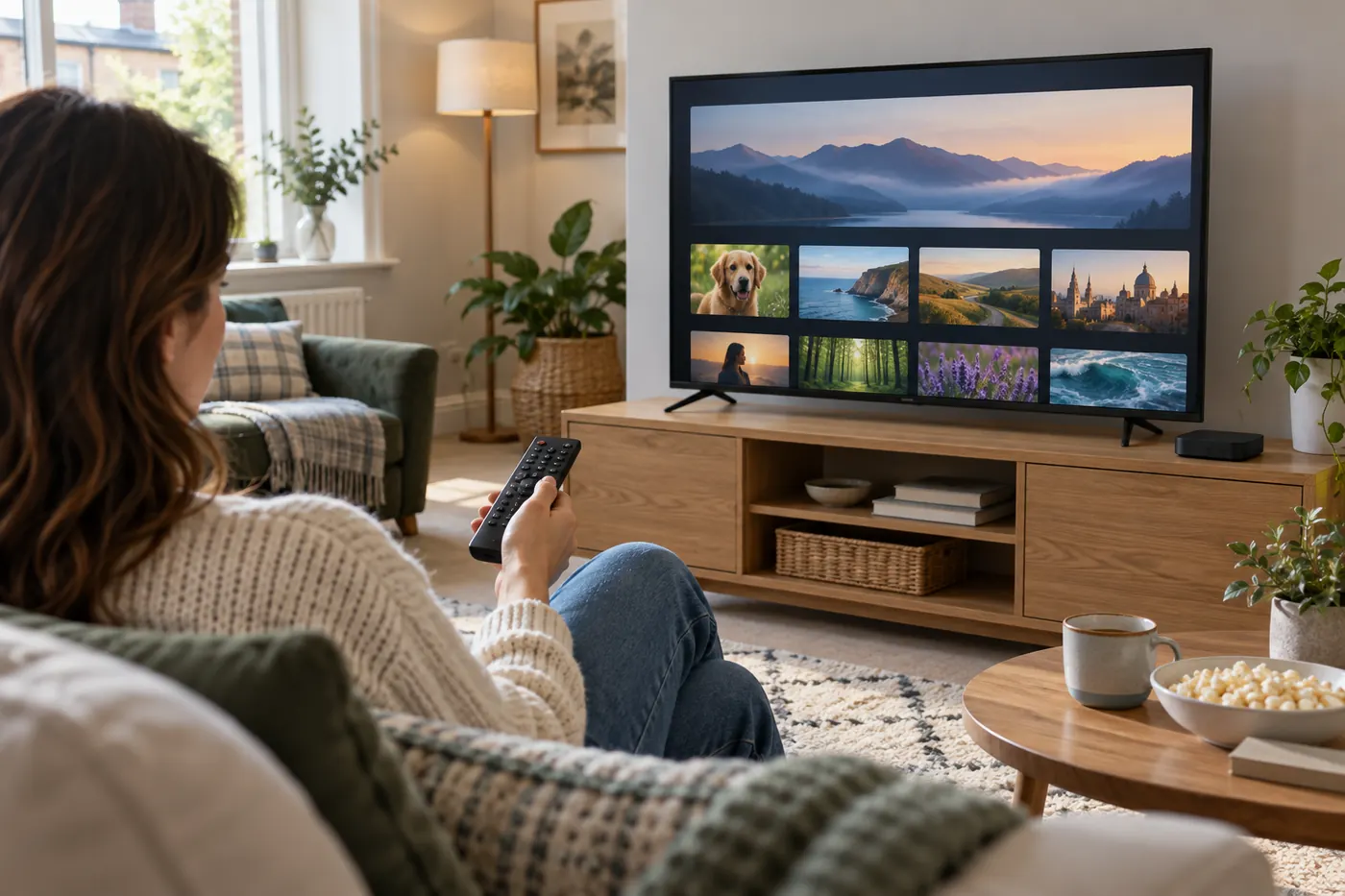
Some services include an electronic programme guide (EPG) with the login; others provide a separate guide address. Add or refresh the guide using the player’s own instructions if a separate source is required. Guide availability, the number of days shown and refresh controls depend on the service and app. Give the initial download time to finish before deciding it has failed.
Play a few channels you are authorised to watch, then check the guide, sound and remote navigation. Try a live programme as well as another available item if the service supplies it. If programme times look wrong, first confirm the SHIELD’s date, time and time zone are correct. UK clocks change seasonally, so use the appropriate region rather than manually forcing a fixed offset. If only one channel’s listing is wrong, ask the service to check its guide data.
Test during the hours you normally watch, particularly if you are evaluating a trial. Make a note of the device, app and network connection used. A short successful test is useful, but it cannot guarantee that every channel or event will always perform the same way.
Picture, sound and storage settings
Keep video changes reversible
Start with a display mode the TV supports and a picture you can see reliably. If you change resolution, refresh rate or dynamic range, note the original setting and test with content you normally watch. The television, receiver and app may respond differently to each mode. An automatic or recommended setting can be a sensible baseline; a higher number is not a universal fix for motion or buffering.
The SHIELD TV Pro supports AI-enhanced upscaling for eligible material, according to NVIDIA. Upscaling changes the output presentation; it cannot add genuine detail that was not present in the source. Availability depends on the input and settings. Compare it on and off if you prefer, and do not judge stream reliability by upscaling alone.
Check audio through the whole chain
If a picture plays without sound, compare another channel and another app before changing settings. Check mute, volume and the TV’s selected speaker. If you use an external receiver or soundbar, check its input and whether it supports the chosen audio format. Test the TV speakers directly if practical. For a full sequence, use our IPTV no sound troubleshooting guide.
Understand the Pro model’s storage
NVIDIA lists 16 GB of internal storage for the SHIELD TV Pro, with some space used by system software, and two USB 3.0 ports. A USB drive can expand storage, but recording depends on your app, subscription, programme rights and drive setup; it is not guaranteed just because the box has USB ports. Older SHIELD models have different hardware. Check the model label and NVIDIA’s documentation rather than assuming the same ports on every version.
Before formatting a drive or setting it up as device storage, copy any files you need elsewhere and read the on-screen warning. Formatting can erase existing data and device storage may not be readable in the same way on another device. Do not remove a drive while it is being used; follow the device’s safe-eject instructions.
Troubleshoot IPTV on NVIDIA Shield safely
The player cannot load the playlist
First check whether another app connects to the internet. Then verify the playlist type, server address and credentials with your provider. Check expiry and any simultaneous-connection limit without sharing credentials publicly. If a second supported player is available, testing it can help identify an app-specific issue; make sure you understand any app charge before installing it.
Channels freeze or buffer
Check whether the problem affects one channel, the whole player, or other streaming apps too. Restart the player and SHIELD through their normal controls, then retest. If other apps also struggle, check the network and try Ethernet where practical. If only one channel fails while others work, report its name and time to the provider. Our IPTV buffering fixes explain a more detailed comparison.
The guide is empty or out of date
Refresh the programme guide in the player, confirm whether a separate EPG address is required and check the SHIELD’s time settings. A working channel list does not prove that the guide source is working. If a guide remains empty on multiple compatible devices, provide the affected channel names to your provider and ask it to check the EPG source.
The app will not open
Restart the SHIELD, check for updates in the Play Store and check available storage. If the problem began after an update, tell the app developer the app and SHIELD software versions. Avoid installing an older package from an unknown site. If only the IPTV player fails, its support team is a more useful first contact than changing unrelated network settings.
Clearing app data or uninstalling the player can remove locally stored logins, playlists, favourites and preferences. A factory reset can remove all installed apps, accounts and device settings. Before either step, confirm what you can restore and back up or record the necessary information securely. Clearing cache is generally less disruptive, but read the device’s description and make sure you select cache, not data.
If you are still choosing hardware, compare the connections and app support in our IPTV box guide. Owners of Google’s newer streamer can use the separate Google TV Streamer setup guide. More device help is available in the BritStream guides.
Frequently asked questions
Can I watch IPTV on NVIDIA SHIELD TV Pro?
Yes, with a compatible player and a content source you are authorised to use. The SHIELD does not include an IPTV subscription simply because it can run a player. Check that the player accepts your provider’s login or playlist format.
Do I need Ethernet for IPTV on SHIELD?
No. Wi-Fi can work if the signal and internet connection are reliable. Ethernet is useful for testing or reducing Wi-Fi interference when the router is accessible, but it cannot fix a problem with the provider’s feed.
Does SHIELD TV Pro make every IPTV channel 4K?
No. The Pro can output supported 4K content and upscale eligible video, but the original stream, app and entire display chain determine what you can watch. Upscaling is not the same as receiving a native 4K channel.
Will a factory reset fix a missing playlist?
Not necessarily. Check the login, playlist format, network and service status first. A factory reset removes installed apps, accounts and settings, so only consider it after following NVIDIA’s instructions and preparing to restore your setup.