
IPTV on Panasonic TV can work through a compatible app on the television or through a separate streaming device connected by HDMI. The right route depends on the exact TV model, its operating system, the apps available in your UK store and the format your television service supports. A Panasonic badge alone does not tell you which player you can install.
Start by identifying the home screen and model number. Then check the service and app together before you buy anything. This guide walks through that decision, explains setup without assuming every Panasonic is the same, and helps you narrow down common problems.

Before you start: four checks that save time
- Find the full model number. Look on the label on the set or in its settings and write it down. Screen size or the name “Viera” alone is not enough.
- Identify the smart platform. Read the name shown on the home screen or in the model’s UK support information. Panasonic uses different platforms across its range.
- Check the app on that exact device. Search its own app catalogue and read the app developer’s compatibility information. A phone app with the same name may not have a television version.
- Ask the service what it supports. Check the permitted device, player, login method, connection limit and content rights for your location. An app is a player; it does not automatically include a subscription.
For BritStream, confirm the current supported devices, apps and login method with BritStream support before entering account details. We have not independently verified a particular native Panasonic player with a BritStream account, so do not treat the examples below as a compatibility guarantee.
Which Panasonic smart platform do you have?
Panasonic’s UK information describes several smart platforms, with availability varying by model and market. Its European TV range announcement lists Fire TV, Google TV, Roku and TiVo among the platforms used. That does not mean all four are available on any single set, or that every model mentioned is sold in the UK.
Panasonic with Fire TV built in
If the television’s home screen is Fire TV, look for the app in the TV’s own app catalogue. Sign in to the account required by the platform, if prompted, and check the listing before installing. Amazon’s Fire TV app instructions describe finding and downloading available apps. Availability can depend on device and region.
A built-in Fire TV is not the same physical device as a Fire TV Stick, even though some menus may look familiar. If you already have a stick, our Fire Stick 4K setup guide covers its separate connection and setup. For built-in Fire TV, use the television’s own home screen first.
Panasonic with Google TV or Android TV
Where a compatible Panasonic set has Google TV or Android TV and access to Google Play, search the TV’s store for a television-compatible player. Read the listing, check the developer and verify that the required input format is supported. The TiviMate Google Play listing, for example, describes a player for Android TV and lists supported playlist types. It also states that the app does not provide TV sources. Its listing alone does not establish availability on your Panasonic model or compatibility with your BritStream account.
Panasonic with TiVo OS
Open the apps area and inspect what your particular set offers. Panasonic’s TiVo OS support guidance says standard TiVo OS TVs do not typically have a traditional app store for browsing and downloading new apps. Available apps depend on the manufacturer’s integration. A missing app therefore may not be a fault you can fix by searching harder.
If the service cannot confirm a suitable native app, an external streaming device may be the practical route. Check the external device’s app and service compatibility before buying it; connecting it to a Panasonic TV does not make every app or subscription compatible.
Older Panasonic home screens and other platforms
Some older televisions have a different Panasonic home screen and a more limited selection of apps. Check the model’s manual and current app catalogue rather than assuming that a guide for a newer TV applies. Panasonic’s UK TV FAQs also note that features and supported platforms vary. If your set uses Roku, read the separate Roku compatibility guide for that platform’s particular limitations.
How to set up IPTV on Panasonic TV
1. Prepare the TV and network
Turn the TV on, connect it to your home Wi-Fi or a supported Ethernet connection, and check that another legitimate streaming app can play. Use the TV’s network settings to confirm it is connected to the intended router. If the TV is new to you, complete its initial setup and accept any required software updates first.
Menu labels vary by model and software version. Follow the on-screen options and the manual for your exact model; do not reset the television simply because the wording differs from a tutorial.
2. Choose a supported app
Open the app catalogue available on the TV. Search for the player your service specifically supports, check that its listing applies to the television and install it through the official store if it is available. Check whether the app has a separate charge, trial or activation fee. Paying for a player does not create a TV-service subscription.
If the player is absent, check your TV’s model, platform, region and software version with the app developer. Do not download an unrelated file from an unfamiliar site or change security settings just to force an installation. The safer next step is to check a supported external device.
3. Confirm the account format
Ask your provider which connection details it supplies and which player it supports. Some players accept an M3U playlist URL; others have a username, password and server-address form. A device-specific sign-in or activation code is another possibility. These methods are not interchangeable just because they all lead to television content.
Enter details only in an app and on a device you trust. Treat a playlist URL as a password: it may contain account information. Do not post it in a forum, share screenshots of it or send it to an unrelated support agent. If the player requests details the service does not supply, ask the service before trying to guess them.
4. Sign in and test playback
Open the player, choose the login option confirmed by your service and enter the details carefully. Save, allow the playlist or library to load, and try an authorised channel or programme. Test another item as well. Check picture, sound and the programme guide separately: one working feature does not prove every part of the setup is configured correctly.
If the app asks you to pay, review its terms before proceeding. Confirm the service’s own subscription and permitted number of simultaneous streams separately. Keep the app and account details private, particularly on a shared television.
5. Check guide and accessibility settings
If your service supplies an electronic programme guide, follow its instructions for adding or refreshing it. The guide is data supplied separately from video in some setups. Check the TV’s date, time and time zone before changing an offset, particularly when UK clocks change. Our guide to incorrect EPG times explains how to investigate a one-hour difference.
Where available, turn on subtitles in the player and select the desired audio track. Availability depends on the programme, source and app, not just the television. Try a second programme before deciding that a TV setting is broken.
Using an external streaming device
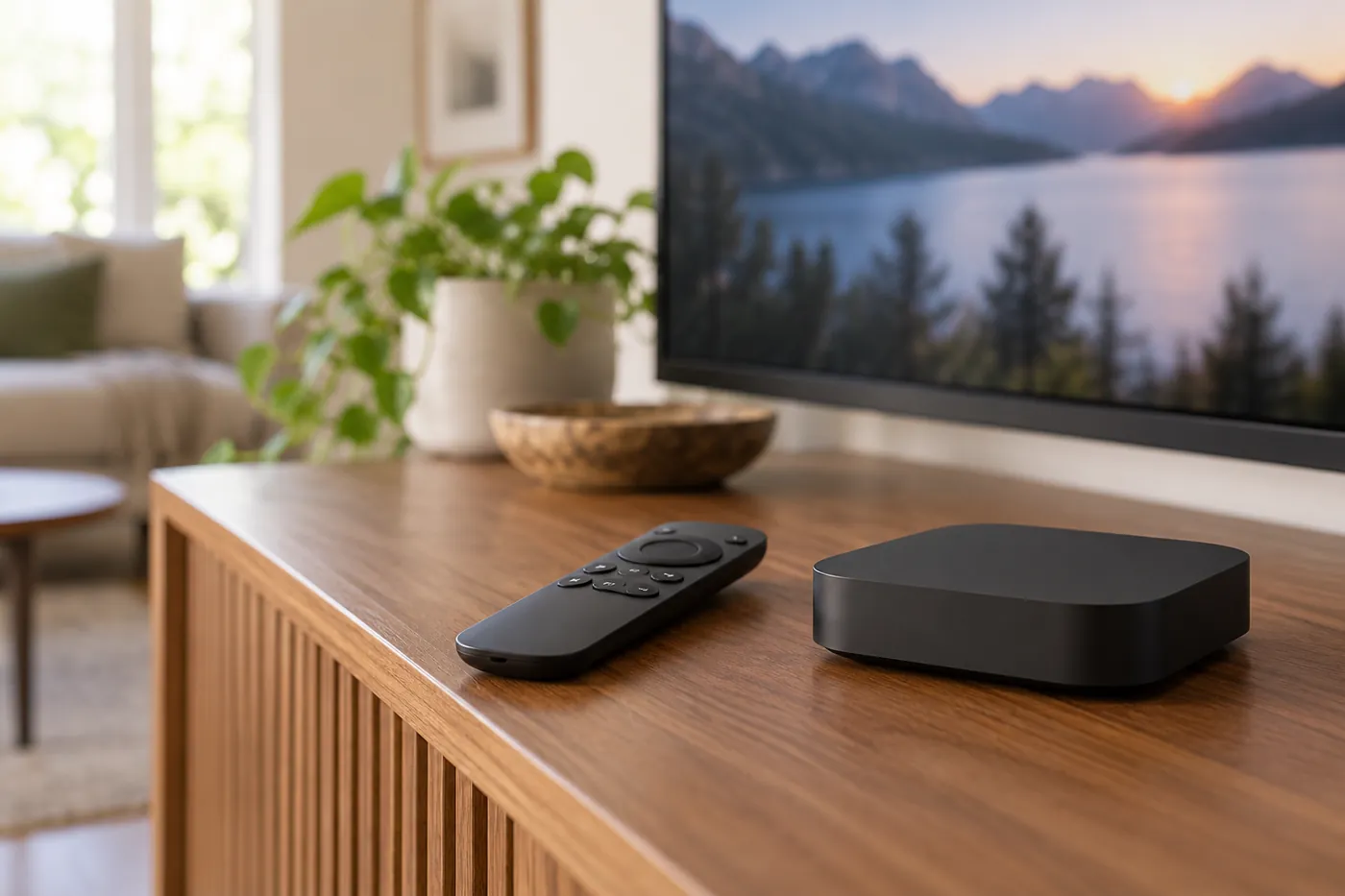
An HDMI streaming device can provide a different app platform while your Panasonic continues to act as the screen. You will still need a compatible player, an authorised service and a working network connection. Check those three requirements before choosing a device.
- Check that your television has a free HDMI input and note its number. Check the streaming device’s power requirements and use its supplied or manufacturer-approved power supply.
- Connect the device according to its instructions, turn on the TV and select the corresponding HDMI input with the TV remote.
- Complete the streaming device’s own setup, network connection and software updates. Its remote and account may be separate from the television’s.
- Search its official app store for the provider-supported player. Check any app charge and the input format before purchasing.
- Sign in, test an authorised stream and adjust picture and sound only if needed. If you return to the TV’s built-in home screen, select the HDMI input again to reach the external device.
For an Android TV device, our Google TV Streamer setup guide covers that device in more detail. It is a separate product, not a claim that your television runs Google TV.
Fix common Panasonic TV streaming problems
The app is missing from the store
First establish whether you are searching the television’s catalogue or the catalogue of an external device. Record the model and platform, verify the UK availability with the app developer, and check for a normal system update. A mobile search result does not prove the app is installable on the TV. If the developer does not support the platform, use a confirmed alternative rather than repeatedly resetting the set.
The app opens but the account will not sign in
Check the selected login type and re-enter the details supplied by the service, taking care with spaces and capital letters. Confirm that the subscription is active and that the number of active connections is within its terms. Ask support whether the app and device are supported. Never send your password or complete playlist URL in a public message.
A playlist loads but video does not play
Try more than one authorised item and another legitimate app on the same network. If other apps work, note the exact error and whether it affects every channel before contacting the service. If nothing plays, inspect the TV or streaming device’s network connection and restart the affected device and router following their instructions. Our playlist troubleshooting guide separates loading problems from playback problems.
Picture freezes or keeps buffering
Compare playback at another time and on another supported device. A busy Wi-Fi network, poor signal, local congestion or a problem with the source can produce similar symptoms. Move the device into better Wi-Fi coverage or use Ethernet where supported, pause other large downloads, and test again. Record what changed; replacing a television is rarely a useful first diagnostic step.
There is a picture but no sound
Check mute and volume on the TV, streaming device and soundbar. Test the TV’s own speakers and another app. If the issue is limited to one source, try its available audio tracks. If an external device is connected through a soundbar, check the selected audio output and connection path. Change one setting at a time so you can reverse it; the no-sound guide offers a fuller checklist.
The HDMI screen is blank
Use the television remote to select the input where the device is connected. Confirm the device has power and that the cable is fully seated at both ends. If possible, try another HDMI input or known-working cable. Allow the TV and device to restart normally, and follow the device manufacturer’s instructions if the display mode is unsupported. Do not assume a blank input means the IPTV account has failed.
Frequently asked questions
Can I install an IPTV player on every Panasonic TV?
No. App availability depends on the model, operating system, region and developer support. Check the television’s own catalogue and the service’s supported-player list. A compatible external device may be an option when the built-in platform lacks the app.
Does a Panasonic TiVo OS TV have an app store?
Panasonic says standard TiVo OS televisions do not typically offer a traditional app store for downloading new apps. Check the apps actually available on your model; the selection can change.
Will BritStream work with any IPTV player?
Do not assume so. Confirm the exact television or streaming device, player, login format and current service requirements with BritStream before paying for an app or device. This guide does not independently verify a specific native Panasonic player with BritStream.
Do I need a new television if my app is unavailable?
Not necessarily. A compatible external streamer connected to an available HDMI input can provide its own app platform. Check the player’s availability and service compatibility on that device first, and consider its power and network requirements.