For IPTV on Roku UK, first check whether your service has a compatible app in the UK Roku Store. If it does not, AirPlay or screen mirroring may help, but only when the Roku model, sending device and video app support the connection. An Android APK is not a Roku app, and a playlist address cannot make an incompatible player work.
The useful question is whether your particular service can reach your particular screen through a supported route. Establish that before spending money. This guide covers Roku streaming players and televisions with Roku built in; individual models and menus differ. It does not confirm native Roku support for BritStream or any unnamed subscription service.
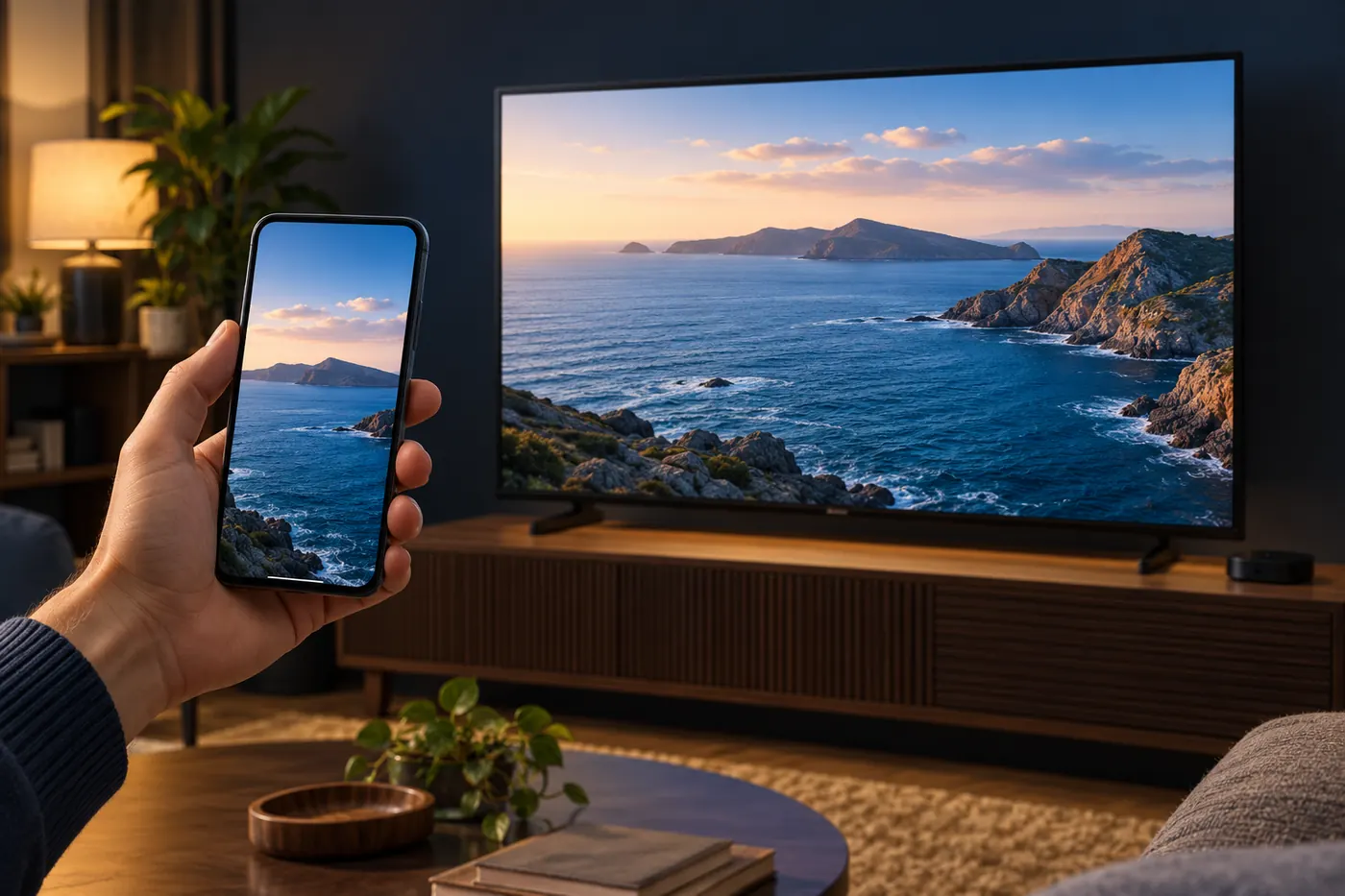
Checked 29 October 2026 against manufacturer documentation. This is not a hands-on test of every device or service. Both images are original editorial illustrations, not product photographs or interface screenshots.
IPTV on Roku UK: choose your route first
There are three sensible starting points: a native Roku app explicitly supported by your service; playback from a compatible phone or computer using an available sharing method; or a separate compatible streamer plugged into the television. Each arrangement has different controls and limitations.
A native app is usually the tidiest arrangement for daily viewing because the Roku remote controls it directly. Sharing from a phone can suit an occasional session, but may leave you relying on that phone for playback. Another HDMI streamer adds equipment, yet can be practical when the service already supports a player on that platform.
Do not buy a long subscription based on a generic “works on smart TVs” statement. Ask for the exact app name and supported platform. Check whether your account includes the programme guide, replay or other functions you need. A demonstration on Android does not establish Roku compatibility, even if the same television can display both devices.
Check the device, app and service separately
Write down the model and software version from Settings → System → About. A television brand alone is insufficient: similar-looking TVs may use different operating systems. Also note whether you are using the television’s own Roku system or an HDMI player. That distinction matters when selecting an input and finding settings.
Next, search the store on your actual UK Roku account. Roku explains that countries have different Streaming Store catalogues. A recommendation based on another country’s store is not proof that you can install the same app here. Inspect the publisher and description rather than trusting a familiar-looking icon.
Finally, ask which login method the supported app expects. A service account, an M3U playlist address and an Xtream-style server login are different inputs. Use a player that explicitly accepts the details you have. BritStream’s Xtream login checks explain why the server address and credentials must match the chosen player.
A player subscription and a television subscription can be separate charges. Paying for the first does not automatically activate the second. Before purchasing either, ask the provider to confirm the precise combination you intend to use, including whether sharing to a television is supported.
Install a supported native app
- Press Home on the Roku remote and open the store. Depending on the software, look for Streaming Channels, Streaming Store or the app-search option.
- Search for the exact app your service names. Open its details and check the publisher, stated functions and fees.
- Add the app using the on-screen option. Enter a purchase PIN only in the genuine Roku prompt if required.
- Open the installed app and follow its own sign-in instructions. Do not assume your Roku account also signs you into the service.
- Test a live channel and an on-demand item if your plan includes both. Check sound, subtitles, guide information and remote navigation.
Roku’s app installation instructions also explain installation through its website and mobile app. If an app added online has not appeared, check for a system update. Adding or removing an app can affect other Roku devices linked to the same account.
If the exact app is missing, stop this installation route. A similarly named player might be unrelated and might not accept the same account. Ask for a current UK Roku listing or another supported device. Avoid turning a compatibility problem into repeated payments for speculative players.
Can an Android IPTV APK run on Roku?
An APK is an Android application package. Roku has its own application platform; enabling developer options does not turn it into Android TV. Android installation instructions should therefore not be reused as Roku instructions.
Developer tools are intended for developing and testing Roku software. They do not guarantee that an arbitrary streaming service, Android application or old installation code will work. Treat a promised universal “unlock” cautiously, especially if it requires payment before showing a current supported app.
For an existing owner, the practical next step is to test a compatible sharing route using equipment already available. If that route fails its compatibility check, use a supported playback device. Repeating unrelated menu changes will not supply a missing app.
Use AirPlay from an iPhone or iPad
AirPlay depends on the Roku model and software. Check the model against Roku’s AirPlay compatibility information and look for Settings → Apple AirPlay and HomeKit. Do not assume every Express, stick or Roku TV has identical support. If the option is missing, confirm compatibility and updates before investigating the video app.
- Connect the Apple device and Roku to the same home Wi-Fi network. Turn AirPlay on in Roku settings.
- Start a video in an app supporting AirPlay. Use its AirPlay control and choose the Roku if it appears.
- To try whole-screen sharing instead, open Control Centre on the iPhone or iPad, choose Screen Mirroring and select the Roku.
- Enter any passcode shown on the television into the Apple device. Keep playback controls accessible during the test.
- Stop mirroring from Control Centre when finished. Confirm the TV has stopped displaying the phone before opening private information.
Apple’s AirPlay instructions distinguish video streaming from mirroring and warn that some video apps do not support AirPlay. A visible phone screen is not proof that every programme will play. If menus appear but protected video does not, use the service’s supported viewing method rather than attempting to bypass restrictions.
Before sharing with other people, enable an appropriate Focus mode and close private apps. This matters when the same phone holds messages, account details or banking notifications. Start with a personal photo to establish that sharing works without displaying service credentials.
Mirror from Android or a Windows computer
Consult Roku’s screen-mirroring guidance first. Compatible Android phones may provide a wireless-display feature such as Smart View. A control labelled Cast does not by itself establish the right protocol. Roku specifically flags Google-branded Nexus and Pixel devices as exceptions in its Android guidance.
- On a supported Roku, open Settings → System → Screen mirroring. Use Prompt so you can approve a connection.
- On a compatible Samsung phone, open Smart View and select the Roku. Other manufacturers use different names and may not support this method.
- On a compatible Windows 11 computer, press Windows key + K and select the wireless display. The computer must support wireless display; the shortcut does not add hardware capability.
- Approve the TV’s request. Choose Allow for the current session while testing, then open your authorised player on the sending device.
- Check picture and audio together. Disconnect with the sender’s sharing control or return Home on the Roku.
Screen mirroring sends the device screen, so its layout can affect the viewing experience. Rotate the phone if the app supports landscape, keep it charged and avoid demanding tasks on the sender. Check a dialogue scene as well as a static image: a connection that looks fine in a menu may be less satisfactory during movement.
Why the Cast button might not find Roku
Casting is not a universal language shared by every television. Roku’s casting instructions describe supported mobile apps working with matching Roku apps. An app having a cast symbol does not establish that it can send any playlist to any Roku.
Keep three tests separate: can your device discover the Roku, can a supported app start playback, and can your chosen service play the programme? Passing one test does not settle the others. Successfully mirroring a photo establishes a display connection but says nothing about a subscription app’s content permissions.
If the provider only supports an output method unavailable in your setup, use a supported receiver or native app. Searching for Roku repeatedly will not change the sender’s capabilities. Describe the exact phone and app to support staff so they can recommend a route matching your equipment.
Troubleshoot the symptom you actually see
Roku never appears: identify the sharing method first. For AirPlay, check the same Wi-Fi network, enabled receiving and compatible devices. Apple’s troubleshooting steps recommend current software and restarting participating devices. Guest-network isolation may prevent discovery; consult the router documentation before changing network settings.
The connection is refused: check the television for an approval prompt. If you previously blocked the sender, inspect the screen-mirroring device list and remove that blocked entry before retrying. Do not approve an unfamiliar device simply because a prompt appears during troubleshooting.
Only one app freezes: try another native Roku app. If it plays normally, focus on the affected app or service. TCL’s Roku TV app troubleshooting suggests connection and update checks, then reinstalling an affected app if needed. Confirm your sign-in details and settings are recoverable before removing anything.
Menus work but video is black: compare a personal video with the programme. If only the subscription app fails, check its supported sharing methods and your account access. Do not automatically diagnose slow broadband from a black screen or assume the television is faulty.
Playback pauses or looks soft: compare native playback with sharing of the same permitted material where possible. This separates the service path from the extra sharing connection. Follow the BritStream buffering checks to narrow the cause without changing several settings at once.
There is a picture but no sound: check mute, volume and the television’s selected audio output. Try another programme and another app. If silence follows only the sharing session, investigate that sender and connection. If all playback is silent, investigate the TV or soundbar path first.
Update carefully and write a useful support note
For a manual check, open Settings → System → Software update → Check now; some interfaces call it System update. Roku’s update guide explains that available software and app updates are installed and the device may restart. Let that finish before repeating the original test.
Change one thing at a time and record the result. “Phone mirrors photos, programme shows black screen, native Roku app plays normally” tells support more than “IPTV broken”. Include the model, sender, app, time and exact error message. Redact passwords, playlist tokens and account identifiers from screenshots.
A factory reset is a poor opening move because it removes configuration without identifying the cause. Keep it for a manufacturer-directed last resort after simpler checks. When a provider cannot name a supported route, ask about compatibility rather than spending another evening resetting equipment.
When a separate HDMI streamer makes sense
A Roku TV can remain your screen while another device handles playback. Connect a compatible streamer to a spare HDMI input, power it as its manufacturer specifies and select that input with the television remote. Install the required app on the streamer, rather than looking for it in the television’s Roku Store.
Before buying, verify the exact model, operating system and app listing. A product-family name is not a compatibility promise. Compare supported options in the UK streaming box guide, then choose around the app, network and controls you need. New hardware cannot repair an expired account or faulty source feed.
Use existing equipment for initial tests wherever possible. Once you can start playback, change programme and recover after closing the app, you have useful evidence that the arrangement suits your household. That is a stronger buying signal than a feature list which never identifies the supported player.
Frequently asked questions
Can I use an M3U playlist directly on Roku?
Only if the particular Roku app explicitly supports M3U playlists and your service permits that use. Do not assume the Roku system itself includes a universal playlist entry screen. Confirm the exact app and UK availability before paying.
Can I install an Android IPTV APK on a Roku TV?
No. An Android APK is not a Roku application. Use a supported Roku app, a compatible sharing method, or a separate device supporting the required Android app.
Why does my iPhone mirror but the video stays black?
The connection can work while a particular app or programme does not support that playback route. Test a personal photo or video, then check the service’s supported devices and AirPlay policy. Use its supported app when sharing is unavailable.
Do I need to replace my Roku TV to use another player?
Usually you can keep the television and connect a compatible streamer to a spare HDMI input. Check the TV connections and the service’s exact device and app requirements before purchasing hardware.